

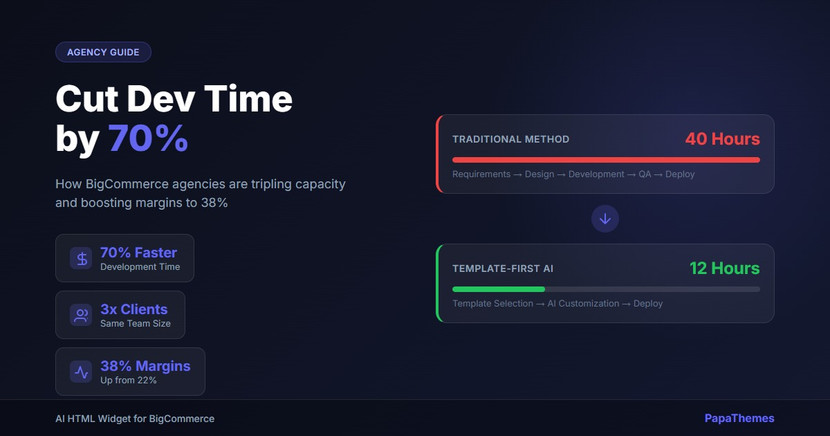
How BigCommerce Agencies Can Cut Development Time by 70%
Every BigCommerce agency faces the same bottleneck: senior developers spending hours building repetitive page sections while new client requests pile up. The result? Projects take weeks when they should take days, margins shrink, and scaling feels impossible.
But what if you could cut section development time from 40 hours to 12? What if your team could handle 28 clients instead of 10, without hiring more senior developers?
Forward-thinking agencies are already doing this. They've discovered
…
12th Feb 2026
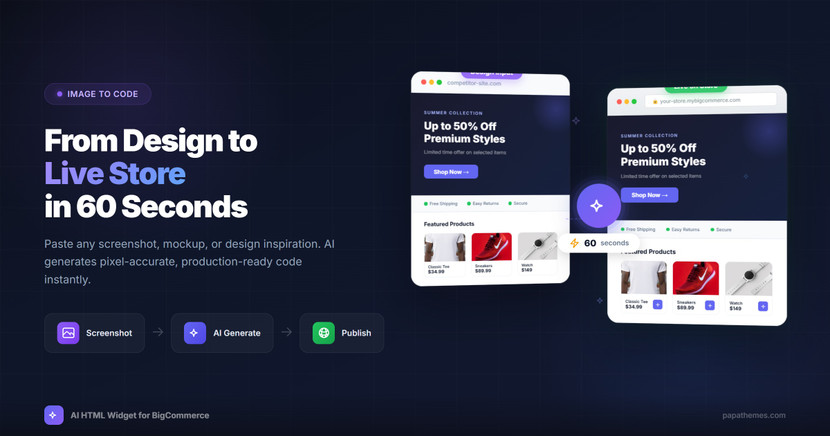
From Design Mockup to Live Store Section in 60 Seconds
You found the perfect design. Maybe it's a competitor's hero banner that caught your eye. Maybe it's a mockup your designer sent over. Maybe it's a screenshot from Dribbble that perfectly captures your brand.
Now you need to turn it into working code for your BigCommerce store.
The old way: Send to developer → Wait 3-5 days → Review → Request changes → Wait again → Finally publish
The new way: Paste image → 60 seconds → Live on your store
The old developer workflow vs. the new i
…
10th Feb 2026
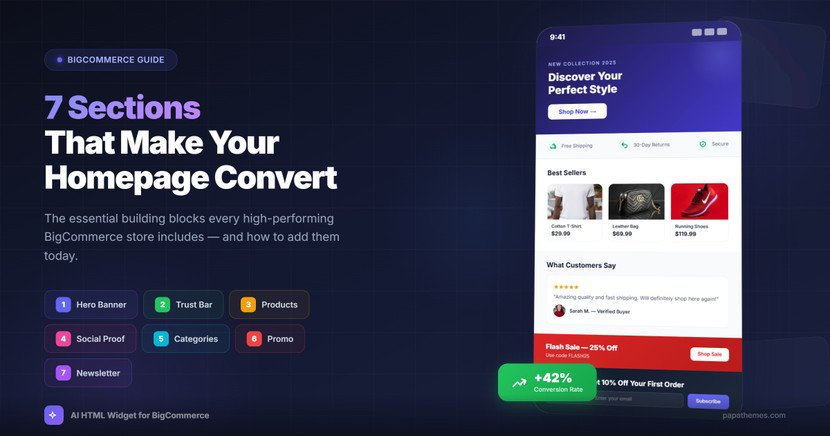
7 Homepage Sections That Convert: A BigCommerce Store Owner's Guide
Your homepage has 8 seconds to make a first impression. In those 8 seconds, visitors decide whether to stay or leave. The difference between a homepage that converts and one that bounces often comes down to seven key sections.
After analyzing hundreds of high-performing BigCommerce stores, we've identified the sections that consistently drive engagement and sales. Here's what top-converting stores include—and how you can add them to your store today.
A well-structured homepage includes
…
9th Feb 2026
Identify which products bought together belong to the main product in Supermarket theme
Solution:Create a product option named Parent SKU:Edit the option set of your also bought together products and add Parent SKU option to option set. Set Required = No:Make sure your also bought together products has Parent SKU field:Now, view a product which has the also bought together products from store front. Verify it has Parent SKU option:Create a new script in Storefront > Script Manager, insert the code below:<script>(function($) { $('body').on('change', '[data-also-bought-ch
…
9th Sep 2019
How to upgrade reCAPTCHA v2 for Stencil BigCommerce themes
As March 31, Google will no longer support reCAPTCHA v1. If your BigCommerce store is still use v1, Captcha box simply disappears, preventing spammers, bots no longer work.If you using Blueprint BigCommerce theme, please follow instruction here to upgrade to reCAPTCHA v2: https://developer.bigcommerce.com/themes/blueprint/#please-add-recaptcha-v2If you use BigCommerce themes bought on BigCommerce marketplace, simply upgrade in Theme Store.If you use customized Stencil BigCommerce theme but
…
24th Mar 2018