
PapaSearch v1.3.0: Date-Range Re-Indexing for Smart Product Updates
What's New in PapaSearch v1.3.0
Re-index only the products that changed. With today's release, PapaSearch merchants can now filter indexed products by a custom date range and re-index just the matching subset—instead of re-indexing your entire product catalog.
The Problem: Full Re-Indexes Are Inefficient
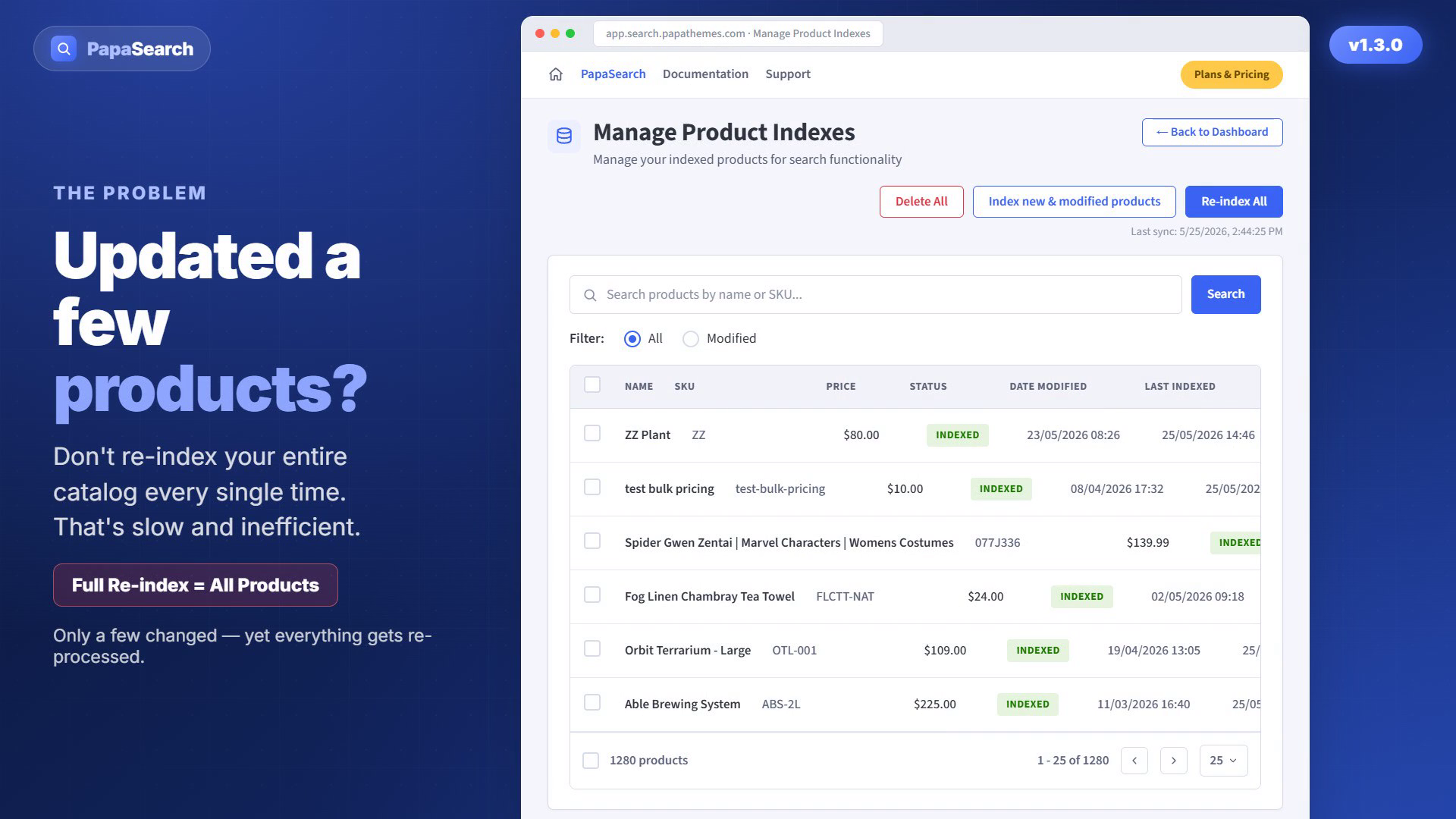 The Manage Product Indexes page — re-indexing the entire catalog reprocesses every item, even those that never changed.
After a bulk product update—like adjusting prices, refreshing inventory, or fixing descriptions across multiple SKUs—merchants need to refresh the search index. Traditionally, this means:
- Re-indexing your entire product catalog (even unchanged items)
- Waiting for the full-catalog process to complete
- Consuming quota unnecessarily
- Applying load to search infrastructure
For stores with large catalogs, full re-indexes consume time and quota that could be avoided.
The Solution: Targeted, Date-Range Re-Indexing
PapaSearch v1.3.0 introduces date-range filtering on the Manage Indexes page:
Filter by Modified Date
Use the new Modified filter to narrow down products by when they were last updated:
- Last 1 day, 3 days, 1 week, 1 month — quick presets for common scenarios
- Since last sync — automatically catches everything modified after your last full re-index (available after your store has completed a full sync)
- Custom date range — pick any From/To dates (UTC) with an Apply button to commit your selection
No page reload while you're adjusting dates—edit your date range locally, review the matching product count, then apply with a single click.
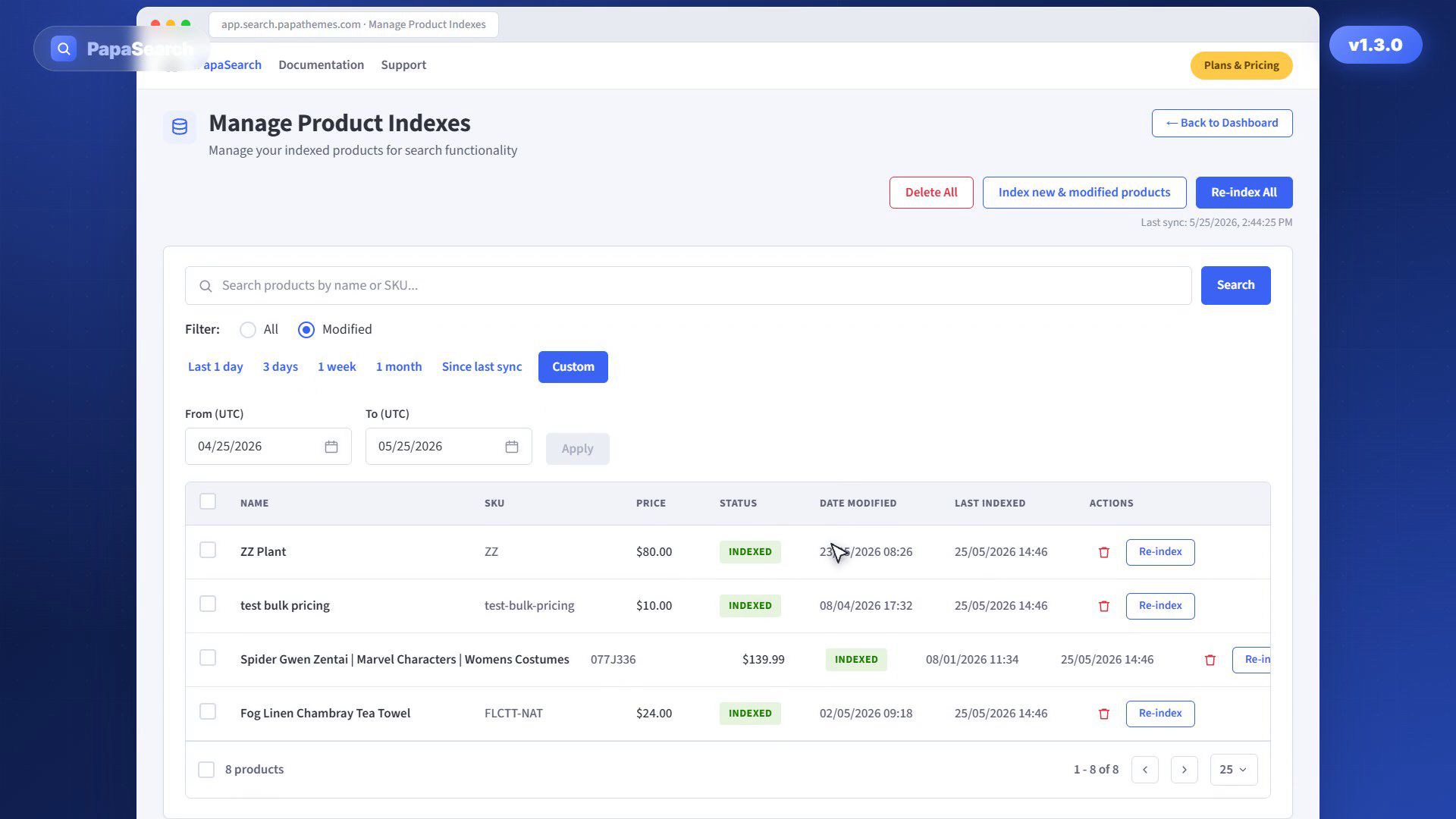 Switch to the Modified filter, then pick a preset or set a Custom From/To date range (UTC) and click Apply.
Select and Re-Index All Matching
Once you've filtered to your target subset:
- Select products via checkboxes (or select all on the current page)
- When your filtered results span multiple pages, a "Re-index all N items" button appears in the bulk-action row
- Click the button to open a confirmation dialog (prevents accidental triggers)
- Confirm, and PapaSearch re-indexes only the filtered products
- Your store's full-catalog sync timestamp stays clean (no interference)
- Watch progress updates as products are processed
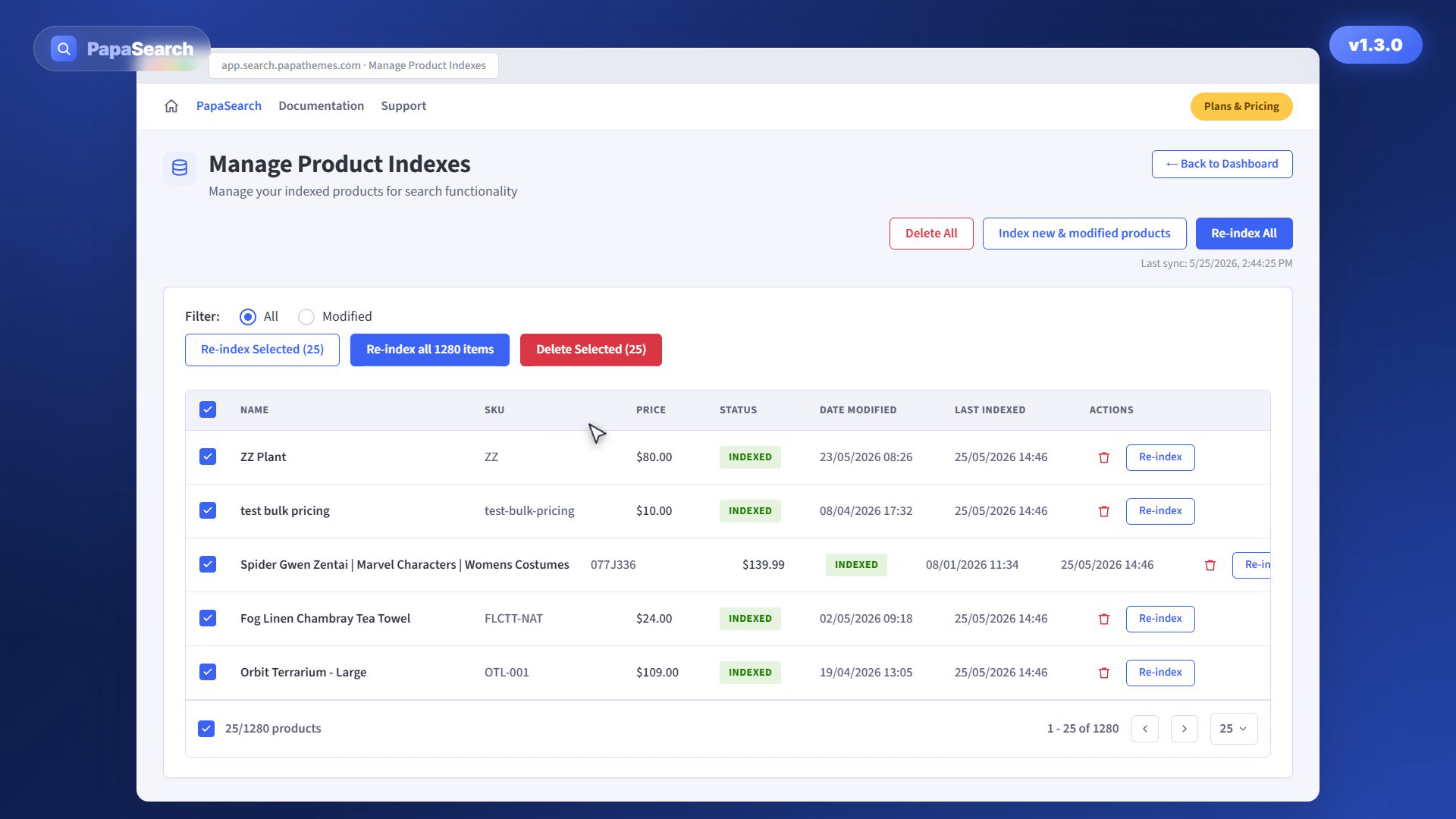 When results span multiple pages, the "Re-index all N items" button appears in the bulk-action row.
Note: If your filtered results fit on a single page, use the "Re-index Selected" button instead.
Example Workflow
- Finish a bulk inventory import that modifies products from yesterday
- Open Manage Indexes → switch to Modified filter
- Select Last 1 day (or Custom: yesterday to today)
- PapaSearch shows the matching product count on the result list
- Select products (or all on the current page)
- If results span multiple pages, click "Re-index all N items" → confirm
- Watch progress; filtered products re-index without full-catalog overhead
Benefits
- Efficient updates: Re-index just the products that changed recently instead of your whole catalog
- Lower quota usage: Use significantly less API quota and embedding credits
- Flexible timing: Schedule tactical re-indexes around promotional updates, inventory changes, or seasonal adjustments
- Cleaner history: Filter-based re-indexes don't overwrite your last full-sync timestamp, so you always know when your full catalog was last processed
Under the Hood
- Custom date ranges apply on demand via the Apply button—no unnecessary refetches while you're adjusting dates
- All dates use UTC for consistency with backend logs and automation tools
- Syncing by filter now properly isolates from full-sync state tracking (a key bug fix in this release)
Availability
PapaSearch v1.3.0 is available now for all merchants on the Free, Pro, and Enterprise plans. The Manage Indexes page update is live—no additional configuration required.
How to Use Date-Range Re-Indexing
- Log in to your PapaSearch merchant dashboard
- Navigate to Manage Indexes
- Select the Modified filter (radio button)
- Choose a preset (Last 1 day, 3 days, 1 week, 1 month, Since last sync) or select Custom for a custom date range
- If using Custom: Enter From and To dates (UTC), then click Apply
- Review the product count in the filtered results
- Select products via checkboxes (or select all on the current page)
- If your results span multiple pages: Click "Re-index all N items" (otherwise use "Re-index Selected")
- Confirm the action in the modal dialog
- Monitor progress as products are synchronized and vectorized
FAQ
Q: Does re-indexing by filter affect my full-sync timestamp? A: No. Filter-based re-indexes now properly isolate from your full-sync tracking, so your store's master sync history stays accurate.
Q: What timezone do the date ranges use? A: UTC. This ensures consistency with your system logs and scheduling tools.
Q: When does the "Re-index all N items" button appear? A: The button appears only when your filtered results span more than one page (i.e., total matching count > items per page). For single-page results, use the "Re-index Selected" button instead.
Q: How does the Custom date range work? A: Enter a From date and To date (both UTC), then click Apply to filter the product list. The page does not reload while you're typing—only when you click Apply.
Q: Can I undo a re-index? A: Re-indexing updates product data but doesn't delete anything. If you need to revert, perform a new re-index with different products, or run a fresh full-catalog sync.
Q: Which products show in the list? A: The filtered list reflects PapaSearch's internal modification timestamps (when a product was last updated in Elasticsearch). This syncs with your BigCommerce product updates.
What Else Is New
Bug Fix: Syncing products by filter no longer disturbs your store's full re-index timestamp, ensuring accurate sync history and cleaner index management workflows.
Ready to optimize your search indexing? Update to PapaSearch v1.3.0 today and re-index only what matters.
Get PapaSearch | Full Changelog | Contact Support