PapaSearch Merchandising: Boost, Bury or Hide Products in BigCommerce Search
Your search results decide what shoppers see first. Until now, that order was entirely up to relevance. With Merchandising in PapaSearch 1.11, you decide: boost, bury or hide products for any search keyword or category page on your BigCommerce store.
What's New in PapaSearch 1.11
The Problem: Relevance Alone Is Not Your Strategy
A search engine ranks products by how well they match the words a shopper typed. That is a good default, but it does not know that a product is this season's best seller, that an item is about to be discontinued, or that a product keeps showing up in a search where it does not belong. Merchants needed a way to apply that knowledge without editing product data.
The Solution: Merchandising Rules
A merchandising rule has three parts:
- When — a search keyword (contains or exact match), or one category page.
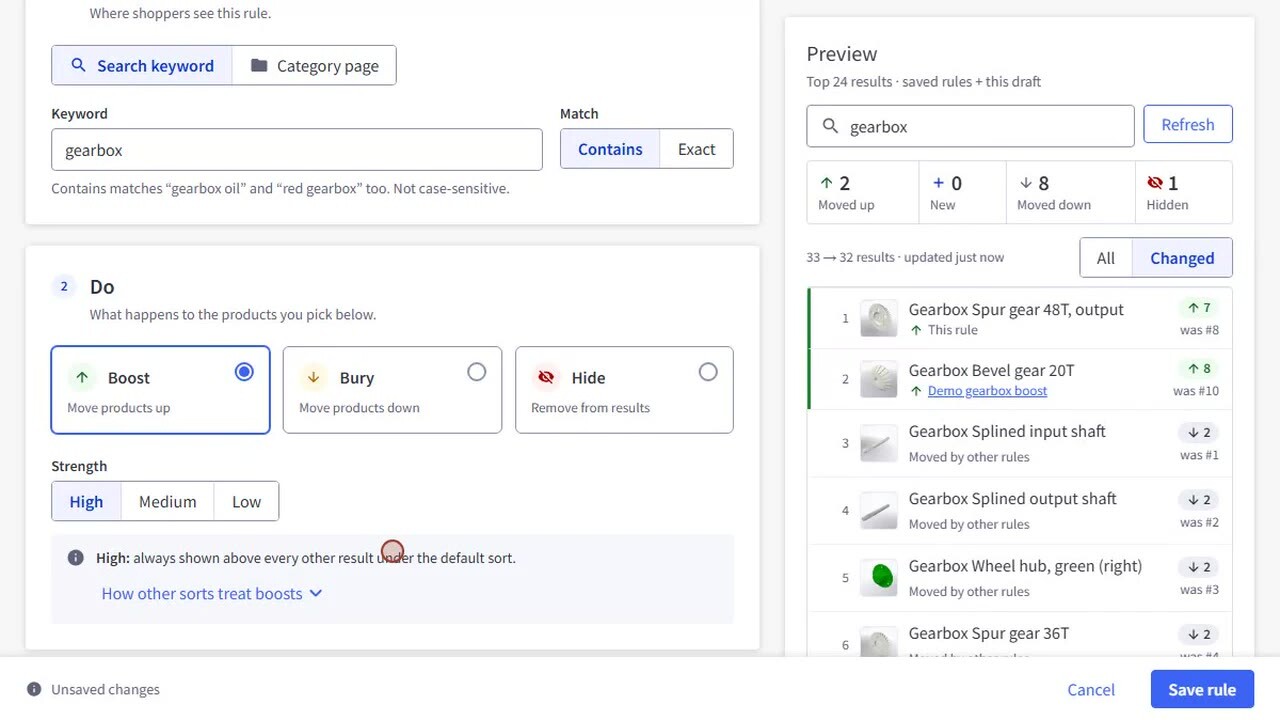
- Do — Boost, Bury or Hide, with a strength of High, Medium or Low for boosts and buries.
- Which products — up to 100 products, or whole brands, or categories.
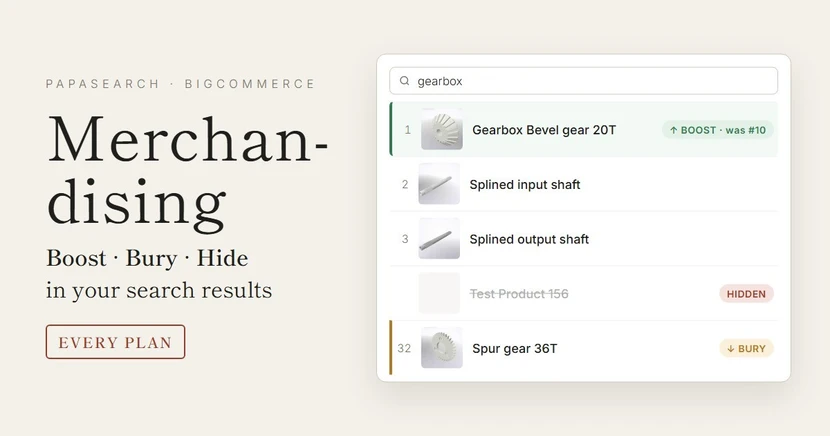
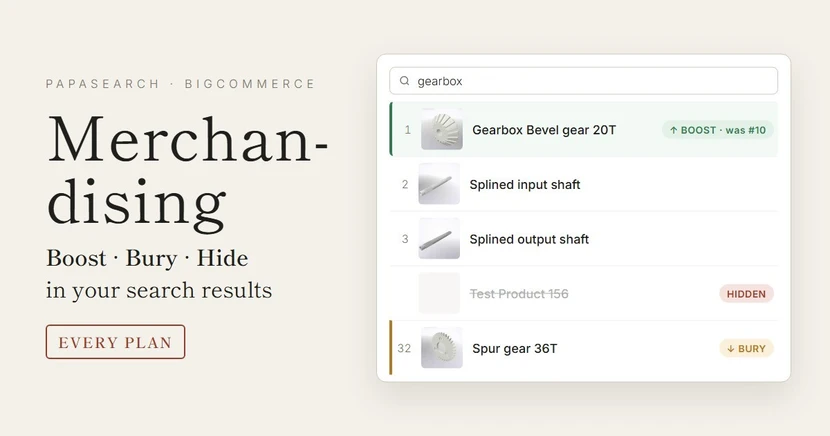
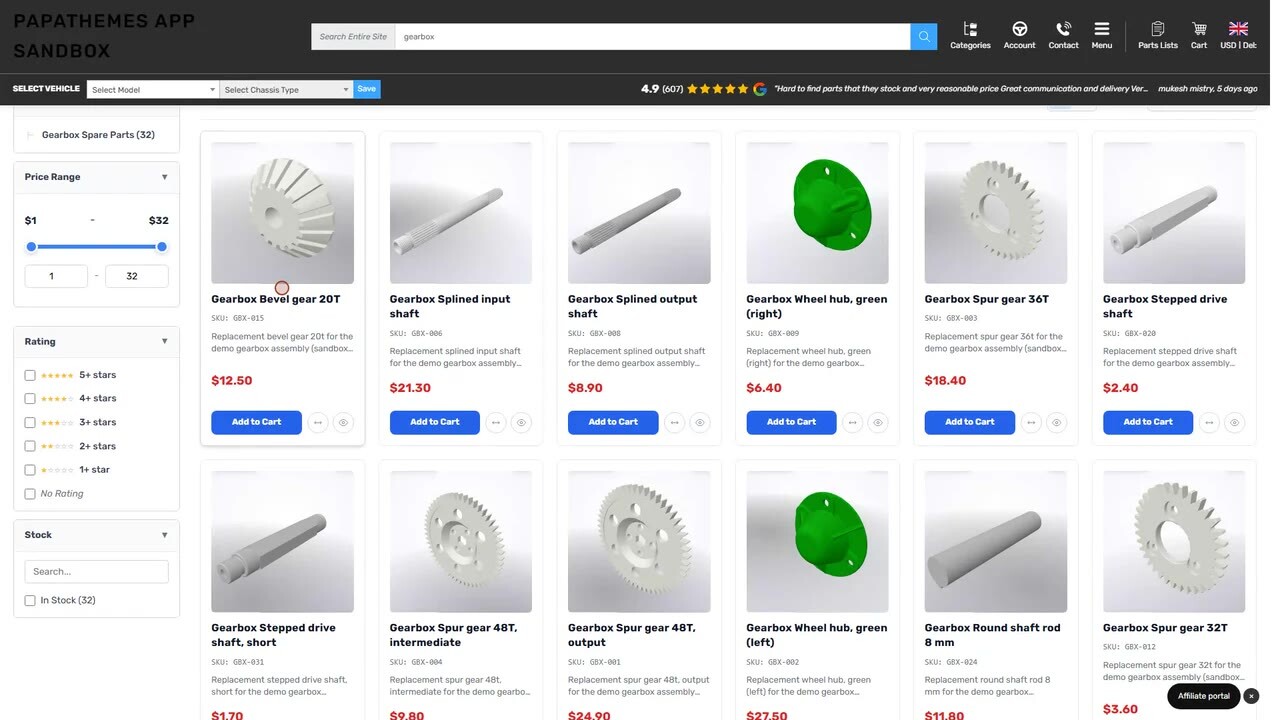
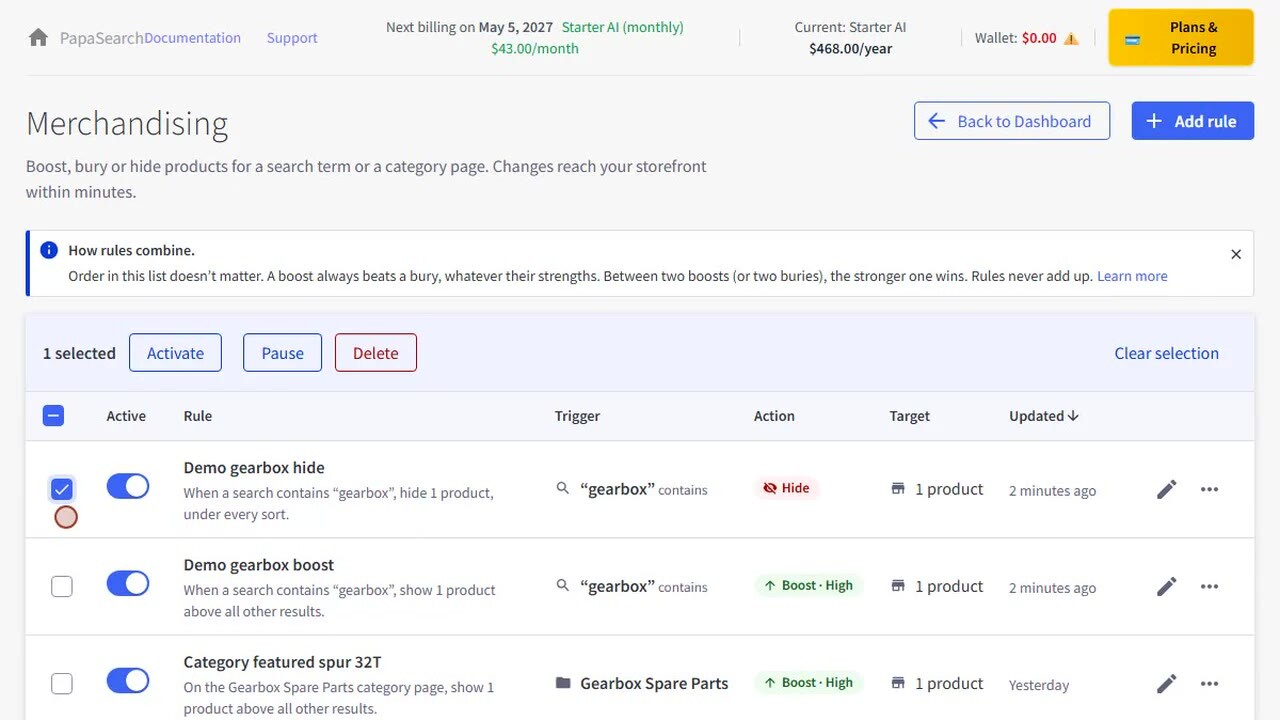
For example, a High boost for "gearbox" on one product puts it first in every search that contains "gearbox". A Hide rule removes a product from those results and from the filter counts.
What Each Strength Does
- High — boosted products are shown above all other results; buried products below all other results.
- Medium and Low — a gentle nudge among results that are about equally relevant. A product that does not match the search well will not jump to the top.
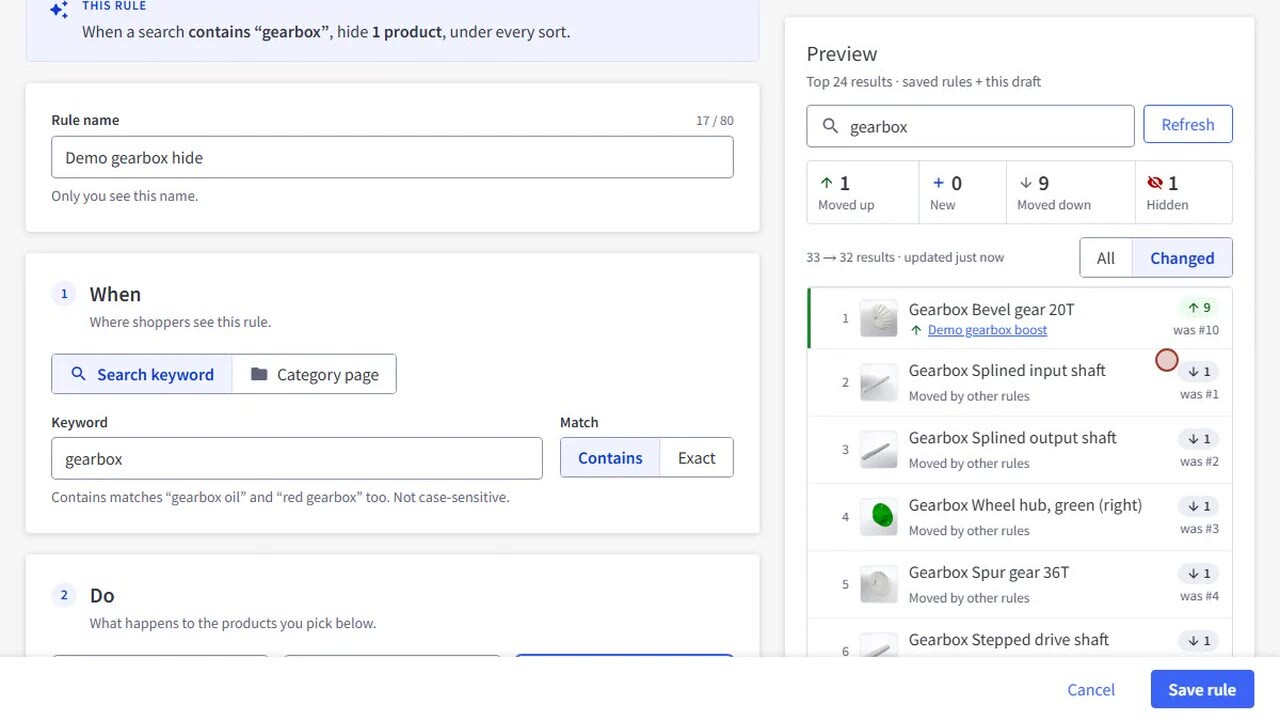
- Hide — the product disappears from the results and from the filter counts, under every sort. If a Hide rule removes every result, shoppers see "No products found", never the products you hid.
See Every Change Before You Save
The rule editor has a live Preview of the top 24 results with your saved rules plus the draft you are editing. It counts what moved up, what is new in the top 24, what moved down and what is hidden, and lists each change with its previous position and the rule that caused it.
Category Pages and Category Scope
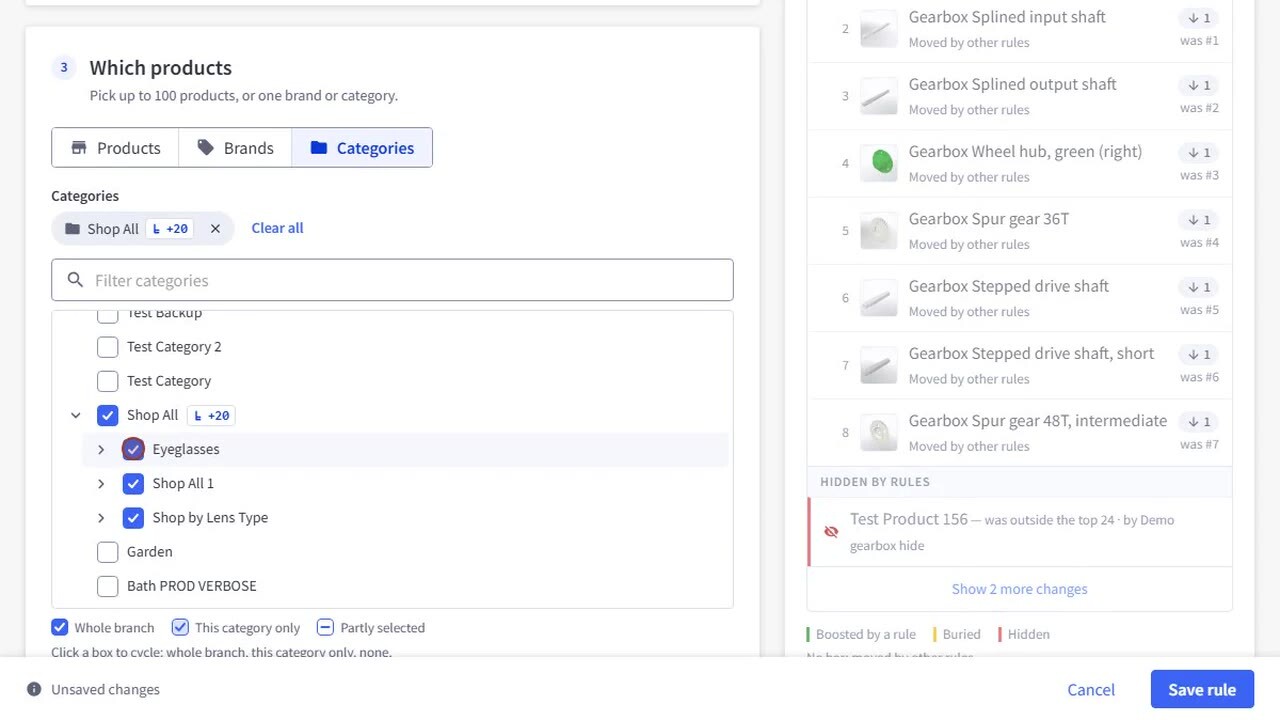
A rule can run on a category page instead of a search, so the product you choose leads that page whenever shoppers browse it. When a rule targets categories, each category box cycles through Whole branch (the category and all its subcategories), This category only, or not selected. Leave out a single subcategory of a branch with one click.
Benefits
- Promote best sellers, new arrivals or high-margin products where shoppers actually look.
- Push discontinued or out-of-season items to the end without deleting them.
- Keep irrelevant products out of specific searches.
- Change your storefront in minutes, with no theme or product edits.
Under the Hood
Rules apply inside the PapaSearch engine, so they work with semantic search, filters, paging and fitment. When several rules apply to one product, they do not add up: a boost always beats a bury, and between two boosts (or two buries) the stronger one wins. When shoppers sort by price or best selling, boosted products are moved ahead only of products with the same price or sales, so the shopper's sort is respected. Hidden products stay hidden under every sort.
Availability
Merchandising is included in every PapaSearch plan, including Free. You can create up to 200 rules per storefront channel.
How to Use Merchandising
- In BigCommerce, open the PapaSearch app and click Merchandising on the dashboard.
- Click Add rule.
- Under When, choose Search keyword and type the keyword, or choose Category page and pick the category.
- Under Do, choose Boost, Bury or Hide, and a strength.
- Under Which products, add products, brands or categories.
- Check the Preview, then click Save rule. Changes reach your storefront within a few minutes.
Manage all rules from the Merchandising list: search them, filter by trigger, action or status, and pause or activate several at once. The full guide is at docs.search.papathemes.com/15-merchandising.
FAQ
Do rules change my products or my theme?
No. Rules only change the order and visibility of products in PapaSearch results.
What happens if a boost and a bury apply to the same product?
The boost wins, whatever their strengths. Rules never add up.
Does a category page rule apply when a shopper searches and then filters by that category?
No. Category page rules apply only when shoppers browse the category page. Searches use keyword rules.
Can I turn a rule off without deleting it?
Yes. Use the switch in the rules list, or pause several rules at once.
What Else Is New
- Faster results on repeat visits for stores without default filter selections: the product list and the filters are now fetched at the same time.
- Hide rules on slow connections: if results arrive late, PapaSearch replaces the theme's own search page instead of leaving hidden products on screen.
See the full PapaSearch changelog.