
How to Set Up Photo Reviews on Your BigCommerce Store in 10 Minutes
BigCommerce App
Collect Photo Reviews That Drive 2x More Sales
Multi-criteria ratings, customer photos, verified badges — set up in 10 minutes
Install Product Review Images →Introduction: Why Photo Reviews Matter for Your Store
Customer reviews are powerful social proof that drives conversions. But standard text-only reviews? They're just the beginning. When customers can attach photos and videos to their reviews, you unlock a level of authenticity that transforms browsers into buyers.
In fact, product reviews with images generate 2x more sales than text-only reviews. Customers want to see real products used in real conditions—not just polished marketing shots. When someone sees a photo of another customer wearing that jacket or unpacking that gadget, they're more confident in their purchase decision.
If you've read our previous case study on How Photo Reviews Drive 2x More Sales on BigCommerce, you understand the "why." Today, we'll cover the "how."
The Product Review Images app by PapaThemes makes collecting and displaying customer photos incredibly simple. Even better? You can set it up in about 10 minutes. No coding required. No complex configurations. Just straightforward steps that any store owner can follow.
In this tutorial, we'll walk through every step: installation, configuration, customization, and best practices for encouraging review submissions. By the end, your customers will be sharing photos, and your conversion rates will thank you.
Step 1: Install Product Review Images on Your BigCommerce Store
Getting started is effortless.
First, locate the app on PapaThemes:
- Visit papathemes.com/bigcommerce-product-review-images-app/
- Click the "Install App" button
- You'll be redirected to BigCommerce's App Marketplace
- Click "Install" and authorize PapaThemes to access your store
The app integrates directly with BigCommerce's native review system. It doesn't replace or conflict with existing reviews—it enhances them by allowing customers to upload images alongside their text feedback.
What happens during installation:
- The app adds a photo upload section to your review form
- A new "Review Criteria" management panel appears in your BigCommerce control panel
- The review display on your product pages automatically includes customer images
- All data syncs with your existing BigCommerce review system
Installation takes less than 2 minutes. Once installed, you'll see the app listed under Apps & Features in your BigCommerce dashboard.
Compatibility note: Product Review Images works with all BigCommerce themes and page builders. Whether you're using Stencil, Catalyst, or a third-party theme, the app adapts seamlessly to your store's design.
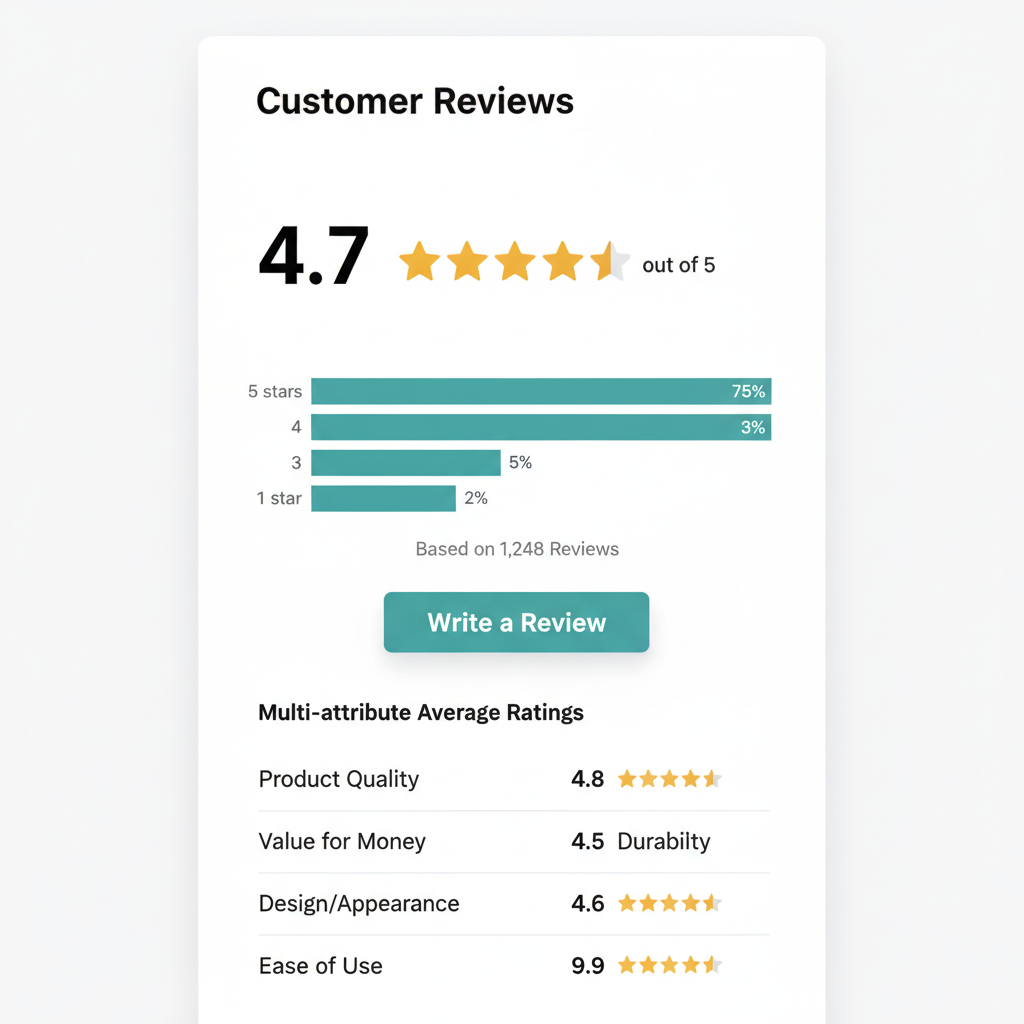
Once installed, your product pages will display a comprehensive review summary with multi-criteria star ratings:
Step 2: Configure Review Criteria in Your Admin Panel
This is where you customize what customers rate and review.
Navigate to the Manage Review Criteria panel:
- Log in to your BigCommerce admin dashboard
- Go to Apps & Features → Product Review Images
- Click "Manage Review Criteria"
You'll see a list of pre-configured criteria. Each criterion has two toggles: Enabled and Required.
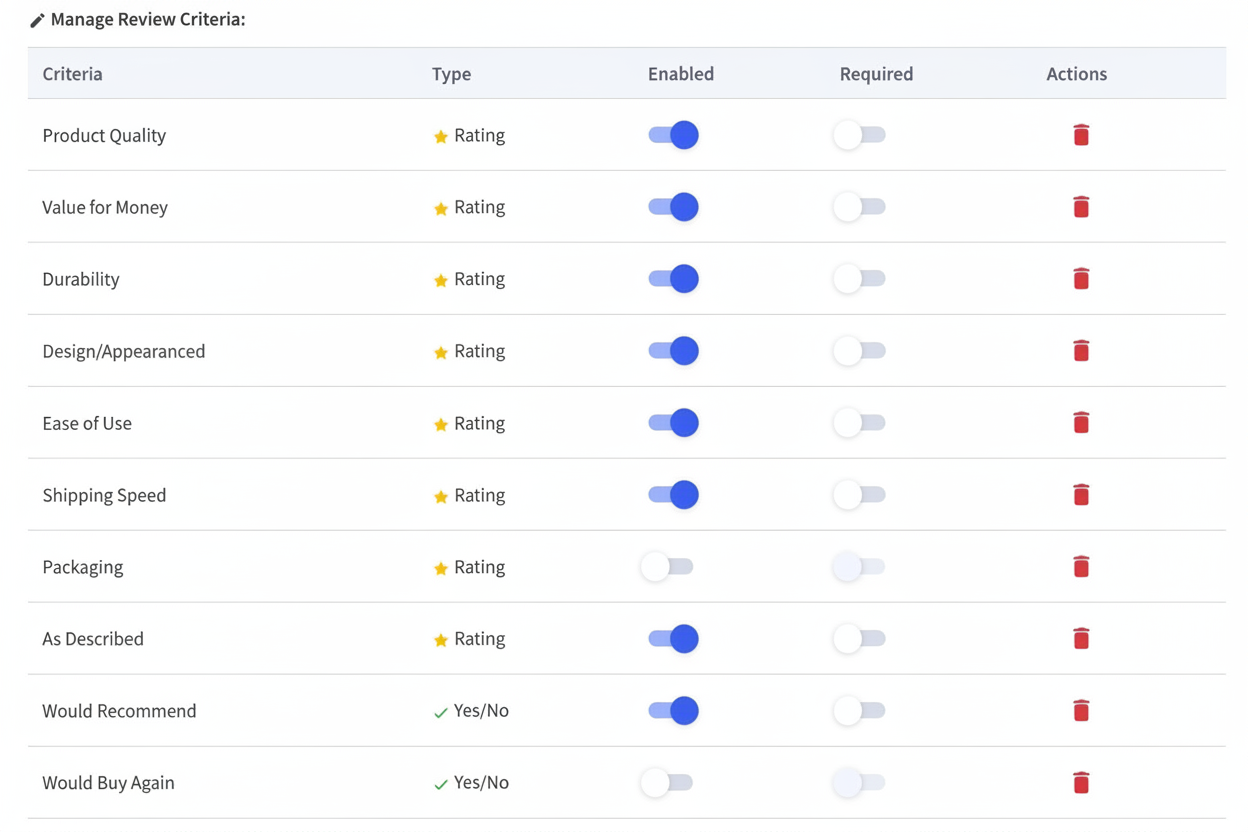
Default criteria available:
- Product Quality - How well-made the product is
- Value for Money - Whether the price is worth it
- Durability - How long the product lasts
- Design/Appearance - How it looks
- Ease of Use - How simple it is to use
- Shipping Speed - How fast the delivery was
- Packaging - Quality of the packaging
- As Described - Whether it matches the product description
- Would Recommend - Yes/No toggle
- Would Buy Again - Yes/No toggle
How to configure:
For each criterion:
- Toggle "Enabled" to show or hide it in the review form
- Toggle "Required" to make it mandatory or optional
We recommend enabling 4-6 criteria that matter most to your products. Too many options overwhelm reviewers and reduce submission rates. Too few miss valuable insights.
Example configurations by product type:
For apparel: Enable Quality, Design/Appearance, Value for Money, Fit (custom criterion if available), Would Recommend, Durability
For electronics: Enable Quality, Ease of Use, Durability, Value for Money, As Described, Would Buy Again
For home goods: Enable Quality, Design/Appearance, Durability, Value for Money, Packaging, Would Recommend
The key is enabling criteria your customers care about. Use your analytics and customer feedback to guide your choices.
Save your configuration, and the criteria immediately appear on your product pages' review forms.
Step 3: Customize the Review Form
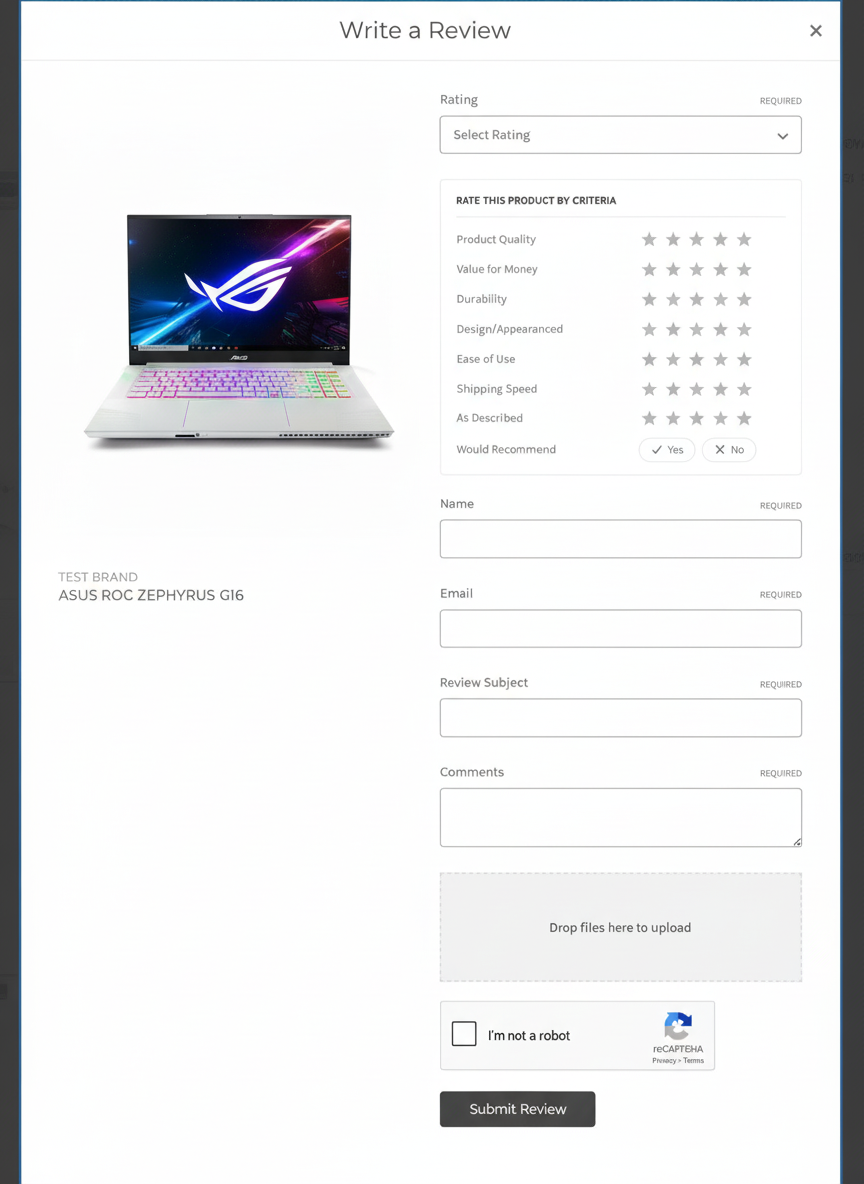
Once criteria are enabled, you'll see them in the "Write a Review" modal on your product pages.
The review form includes:
- Rating dropdown - Overall star rating (1-5 stars)
- Rate by Criteria section - Individual star ratings for each enabled criterion
- Would Recommend / Would Buy Again - Toggle buttons (if enabled)
- Reviewer name - Text field (pre-filled if customer is logged in)
- Email address - Text field for verification
- Review title/subject - One-line summary
- Review comments - Full review text area
- Photo upload - Drag-and-drop file upload area
- reCAPTCHA - Spam protection
- Submit button - Finalize and post review
Customization options:
The app respects your BigCommerce theme's styling. The form automatically inherits your store's colors, fonts, and layout. No additional CSS tweaking required.
Photo upload specifications:
- Accepted formats: JPG, PNG, WebP, GIF
- Max file size: 10 MB per image
- Max images per review: 10 images
- Recommended resolution: 1080x1080 px (displays well on desktop and mobile)
Best practice tips:
- Keep the form visible and intuitive on mobile devices (the app is fully responsive)
- Display a small hint: "Share a photo to help other shoppers decide"
- Consider offering a small incentive: "Upload a photo and your review featured" (if using an incentive system)
The form automatically validates email addresses and enforces reCAPTCHA to prevent spam.
Here's what the review form looks like on your product page, with multi-criteria star ratings and photo upload:
Step 4: Set Up Moderation and Build Trust Signals
Reviews with photos need moderation to protect your brand. The Product Review Images app integrates with BigCommerce's review moderation system.
Review moderation workflow:
- New photo reviews are flagged as "pending" in your BigCommerce admin
- You review the content (text and images) to ensure they're appropriate
- Approve, edit, or reject the review
- Approved reviews display immediately on your product pages with all associated photos
Moderating photo reviews:
- Go to Products → Reviews in your BigCommerce admin
- Filter by Pending status
- Click each review to view the text, criteria ratings, and customer photos
- Click Approve (or Reject) to finalize
Building trust signals:
Display these badges to increase review credibility:
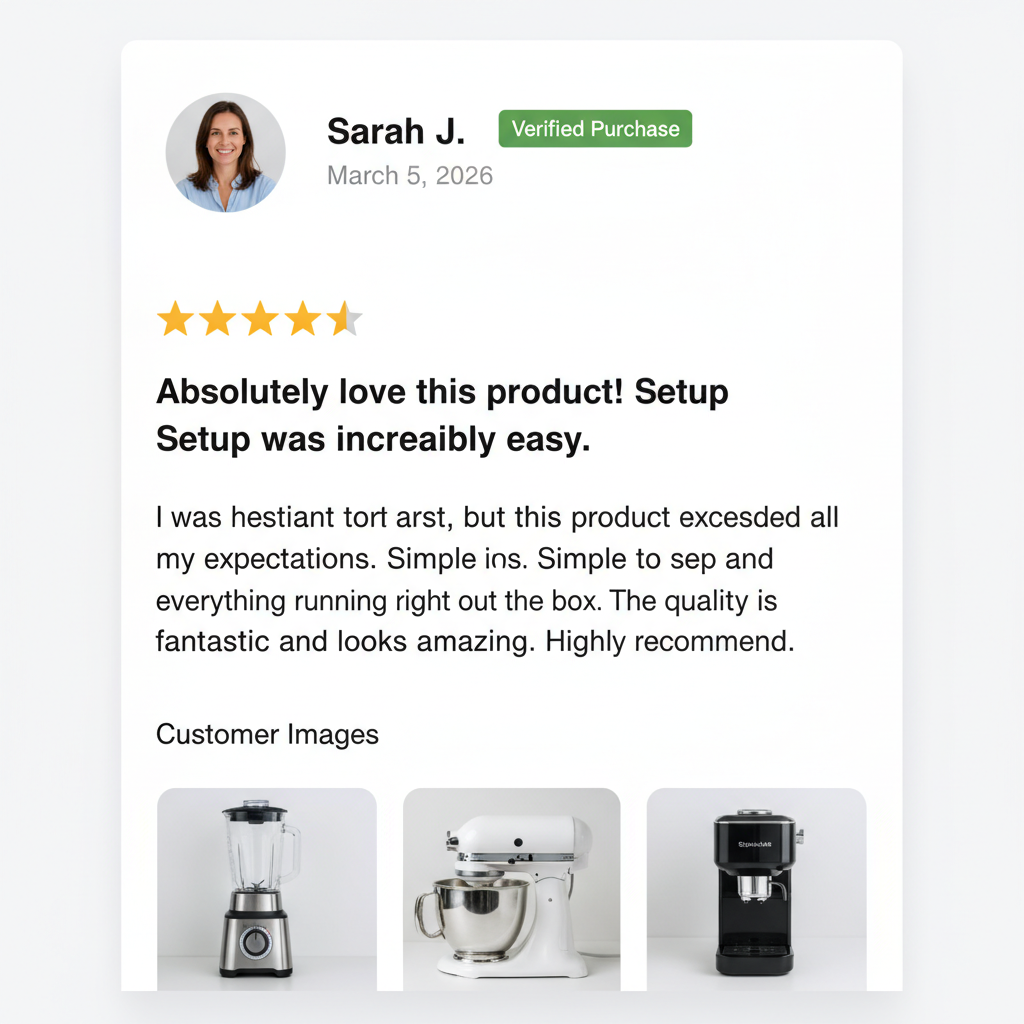
- Verified Purchase badge - Shows next to reviews from buyers. Automatically applied by BigCommerce based on order history.
- Reviewer name and date - Display who wrote the review and when
- Criteria breakdown - Show individual ratings across different dimensions (makes reviews feel more substantive)
- Photo count - Display how many images each reviewer uploaded
Managing inappropriate content:
- Reject obviously spam or offensive reviews before they go live
- Edit reviews cautiously - only if there are typos or minor issues (best to reject and ask the reviewer to resubmit)
- Set review quality standards - require a minimum character count (e.g., 10+ characters) to prevent "Great product!" spam
BigCommerce's native moderation dashboard handles this, and the Product Review Images app enhances visibility by showing photos in the preview.
Here's an example of an approved review with a Verified Purchase badge, multi-criteria ratings, and customer photos:
Step 5: Start Collecting Reviews and Drive Submissions
Installation and configuration are done. Now, how do you get customers to actually submit reviews with photos?
Post-purchase email strategy:
- Send review request emails 7-14 days after purchase (timing matters—customers need to use the product first)
- Include a direct link to the product's review page (not the homepage)
- Highlight the photo upload feature: "Share a photo of your purchase! It helps other shoppers and gets your review featured"
- Make it easy on mobile - ensure the review form is touch-friendly
In-store incentives (if you use them):
- "Upload a photo review and get 10% off your next purchase"
- "Best photo review of the month wins [prize]"
- "Verified photo reviews appear at the top"
On-product-page prompts:
- Add a CTA near the reviews section: "Share Your Photos"
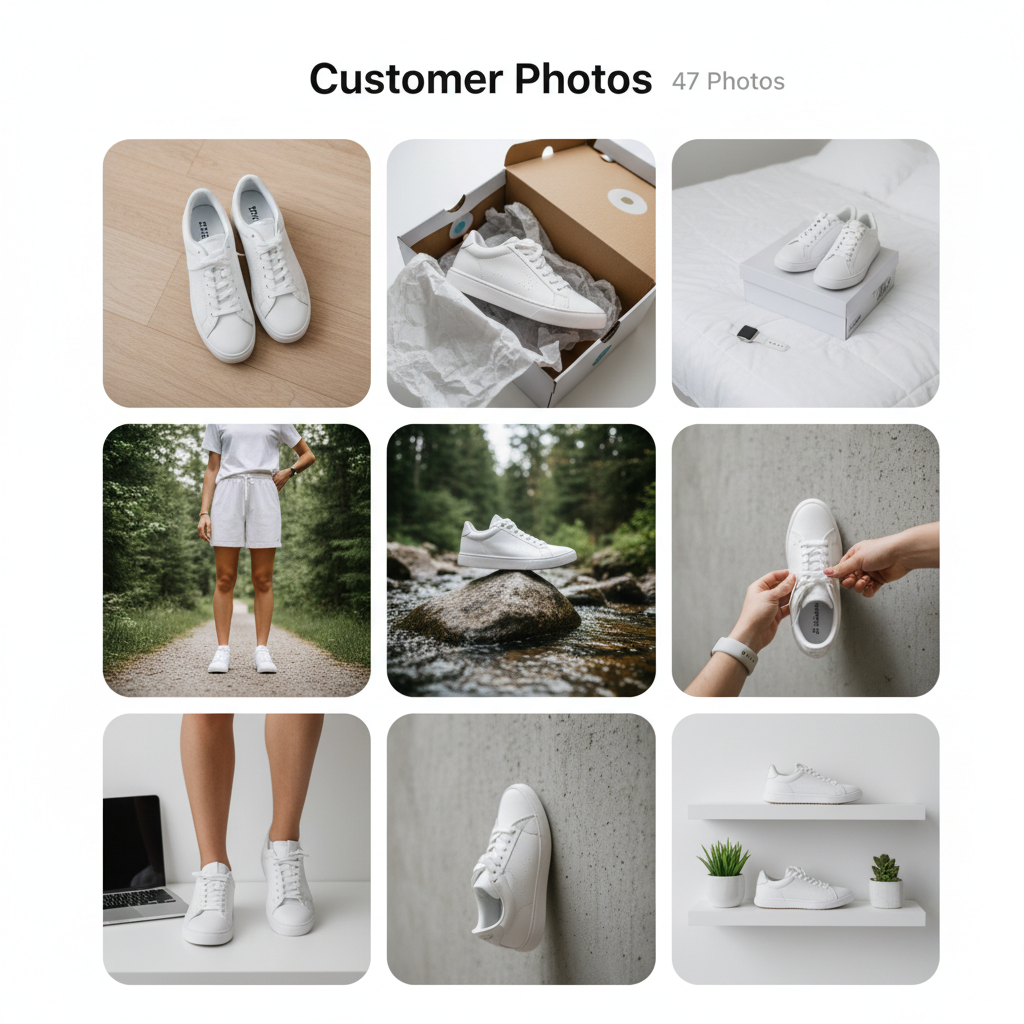
- Display a count: "See 47 customer photos"
- Show a carousel of recent photo reviews (social proof)
Best practices for maximizing submissions:
- Lead with photos - Show a few excellent photo reviews prominently (they convert better than text)
- Make it obvious - The upload button should be clearly visible in the review form
- Reduce friction - Don't require complex account creation; allow guest reviews
- Respond to reviews - Reply to detailed photo reviews, especially positive ones. This signals that you read and value feedback, encouraging more submissions
- Feature top reviewers - Highlight the best photo reviews with a "Featured Review" badge
Tracking review submissions:
In your BigCommerce dashboard, monitor:
- Total review count (growing indicator of engagement)
- Average rating (watch for drops that signal product issues)
- Photo submission rate (percentage of reviews with images)
- Conversion impact (compare sales for products with high photo reviews vs. low)
Over time, you'll build a library of authentic, customer-generated content that drives trust and sales.
The Customer Images gallery gives shoppers a visual overview of real product photos submitted by your customers:
Ready to Collect Photo Reviews That Sell?
Join BigCommerce merchants using multi-criteria photo reviews to drive 2x more conversions. 7-day free trial. No coding required.
Install Product Review Images → Explore All Apps →Frequently Asked Questions
How long does it take to set up Product Review Images on BigCommerce?
The complete setup takes approximately 10 minutes: 2 minutes for installation, 2 minutes for configuration, 2 minutes for customization, 2 minutes for moderation setup, and 2 minutes for strategy planning.
What photo formats does the Product Review Images app support?
The app supports JPG, PNG, WebP, and GIF formats. The recommended resolution is 1080x1080 pixels, and the maximum file size is 10 MB per image with a limit of 10 images per review.
How do I moderate customer photo reviews?
All new photo reviews are flagged as pending in your BigCommerce admin. Review the content and images, then approve or reject the review. You can also edit reviews before approval.
Can customers submit photo reviews without purchasing the product?
This depends on your BigCommerce review settings. You can require verified purchases, allow guest reviews, or require customer login. The Product Review Images app respects these existing settings.
How do I encourage customers to submit photo reviews?
Send post-purchase emails 7-14 days after purchase with a direct link to the product review page. Highlight the photo feature and consider offering incentives like discounts or featuring the best reviews.
Do photo reviews improve SEO?
Yes. User-generated content with photos provides fresh content signals, increases time on page, and boosts engagement metrics that search engines use to rank pages.
Recommended Reading: The Full Impact of Photo Reviews
For deeper insights into how photo reviews affect conversion rates, check out our case study: How Photo Reviews Drive 2x More Sales on BigCommerce.
That post covers:
- Real conversion data from BigCommerce stores
- How review images impact specific product categories
- ROI calculations for implementing photo reviews
- Customer psychology behind visual proof
Conclusion: Your 10-Minute Setup Is Complete
Setting up Product Review Images takes less than 10 minutes and unlocks a powerful driver of sales growth. You've now:
- ✓ Installed the app from PapaThemes
- ✓ Configured review criteria to match your products
- ✓ Customized your review form
- ✓ Set up moderation and trust signals
- ✓ Created a strategy to collect reviews with photos
Your customers can now submit rich, photo-backed reviews. Those reviews build trust for new shoppers, boost your SEO with fresh user-generated content, and provide valuable feedback for product improvements.
Ready to get started?
Install Product Review Images Today and start collecting authentic customer photos. If you have questions during setup, our support team is here to help.
And if you're looking for more ways to enhance customer trust and drive conversions, explore our full suite of BigCommerce apps and extensions at papathemes.com. From AI-powered search to customizable widgets, we've got solutions for every ecommerce challenge.
Happy reviewing!