Edit BigCommerce Banners Without Code — Introducing the Visual Editor
What's New in AI HTML Widget v1.2
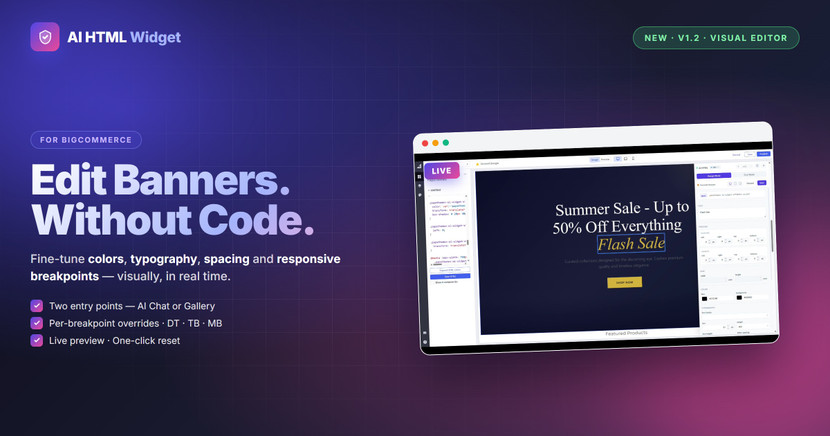
Edit any banner without touching code. With today's release, the AI HTML Widget ships a brand-new Visual Editor — fine-tune every banner you create (or already have) with a real visual surface, right inside BigCommerce Page Builder.
The Problem: Fine-Tuning Banners Used to Mean Code
You generated a beautiful banner with AI. The hero looks great. But your brand uses a different indigo, the padding feels too tight on mobile, and the CTA button needs a softer radius.
Until today, fine-tuning meant one of three things:
- Dive into the raw HTML the widget produced
- Ask the AI again and hope it nails it on the next try
- Open dev-tools and copy CSS into your theme
None of those scale to dozens of banners across a storefront.
The Solution: Two Entry Points, One Visual Editor
The brand-new Visual Editor in AI HTML Widget v1.2 replaces all of that with a single visual surface. There are two ways to launch it — and both open the exact same panel on the same design.
Method 1 — Edit Straight from AI Chat
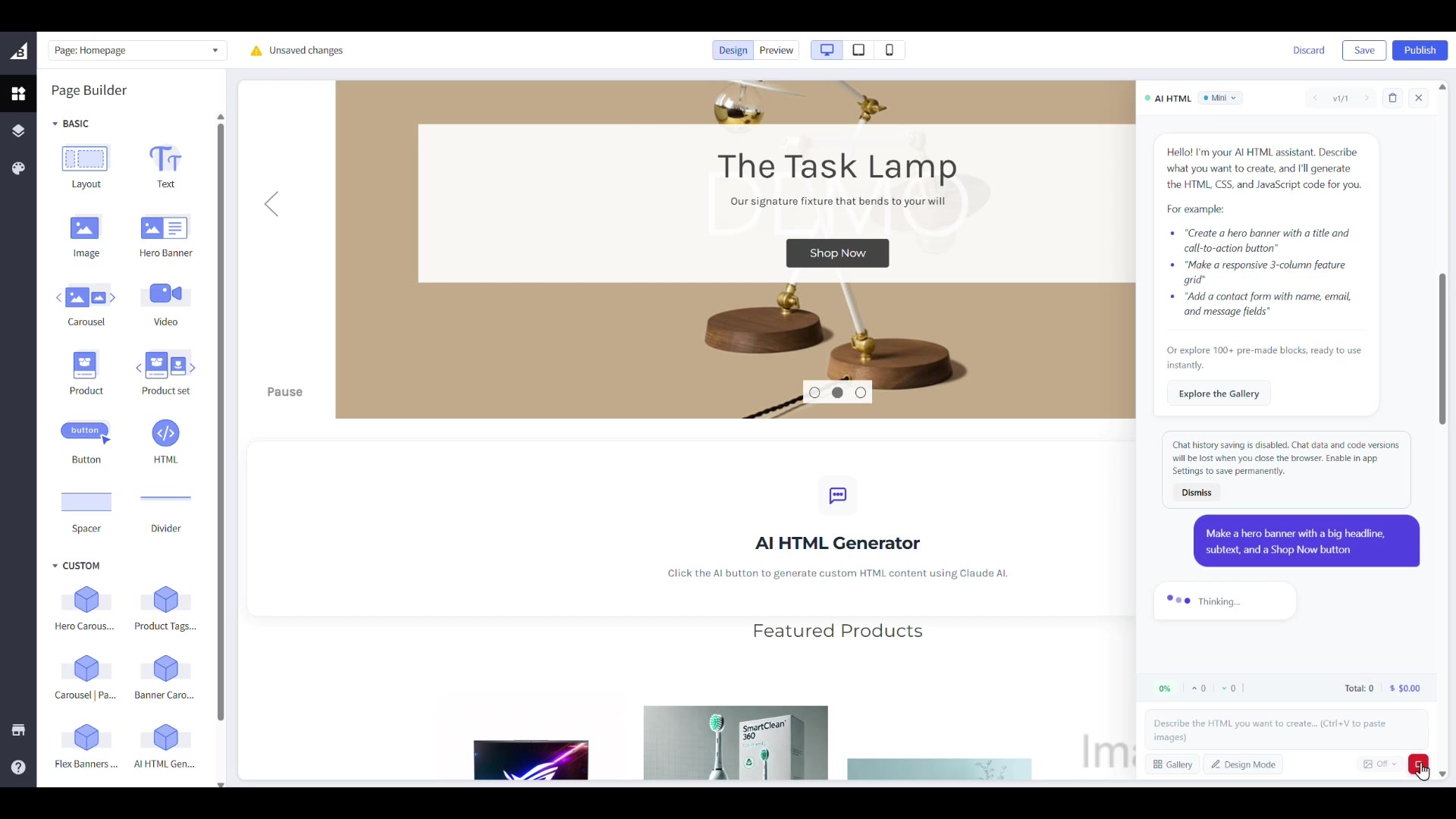 Generate a banner with the AI assistant, click the edit pencil, and the Visual Editor opens instantly inside the chat panel.
Generate any banner with the AI assistant. As soon as the banner renders inside the chat panel, you'll see a small edit pencil next to it. Click it. The Visual Editor takes over and snaps onto the design you just generated.
This is the fast path: prompt → generate → fine-tune → publish, all without leaving the chat.
Method 2 — Edit Straight from the Gallery
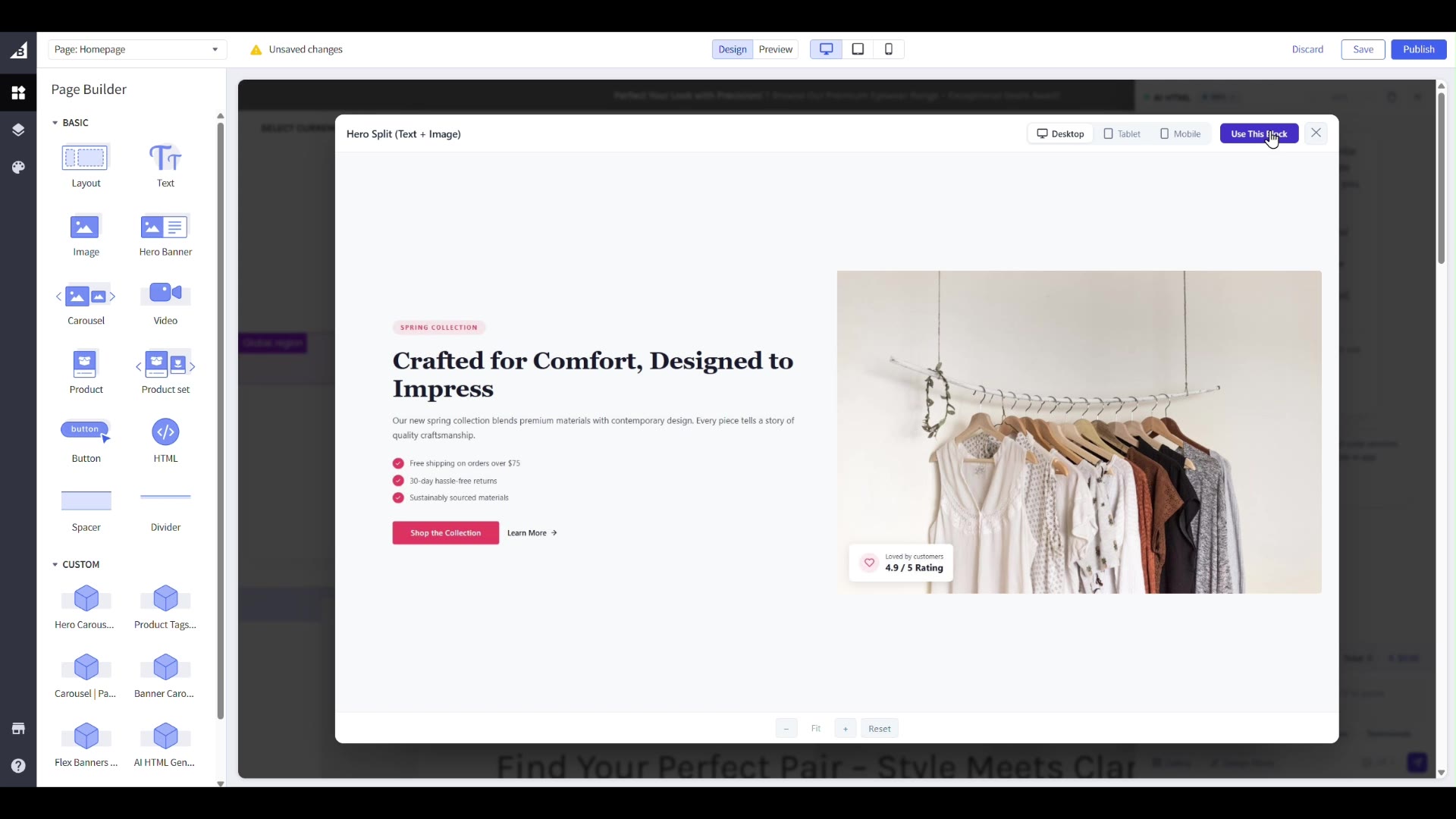 Every banner you save is one click away. Open any of them in the Visual Editor without re-generating.
Every banner you save, AI-generated or hand-built, lives in your Widget Gallery. Open any one of them, hit Edit, and the same Visual Editor opens on top of that design.
This is the curation path: review your library, pick a banner, polish it for a specific page, save the variant.
Same editor. Same shortcuts. Same panel layout. Zero context-switching.
What You Can Edit, at a Glance
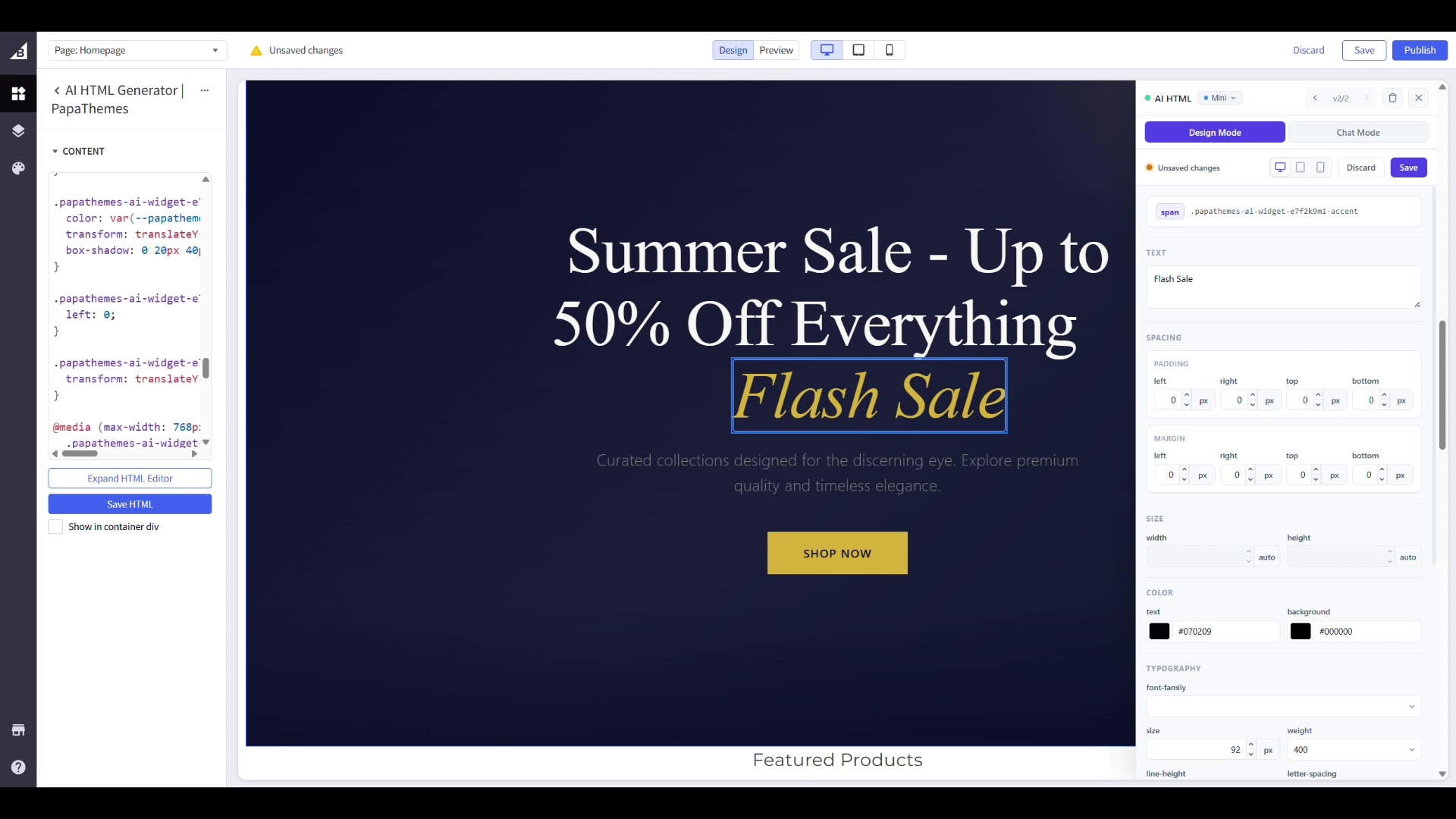 The properties panel adapts to whatever element you select — text, image, button, container. Every numeric field gets a stepper and a unit selector. Every property gets a one-click reset.
Click any element on the canvas and the right panel lights up with everything you can change:
| Property group | Controls |
|---|---|
| Color | hex input + swatch picker (text & background) |
| Typography | font family, size, weight, line-height, letter-spacing |
| Spacing | margin & padding — per side, with stepper + unit picker |
| Border | width per side, style picker (solid / dashed / dotted), color |
| Radius | per-corner, with stepper + unit |
| Alignment | text-align + vertical-align, visual icon grid |
| Size | width / height with unit picker (px / % / em / rem / auto) |
| Image | src + alt text, inline |
| Content | inline text editing — double-click to type |
Every numeric field has a unit selector (px, %, em, rem, vh, vw, auto). Every property has a ↺ reset button that appears the moment your value drifts from the saved original. One click, back to baseline.
Per-Breakpoint Overrides — The Killer Feature
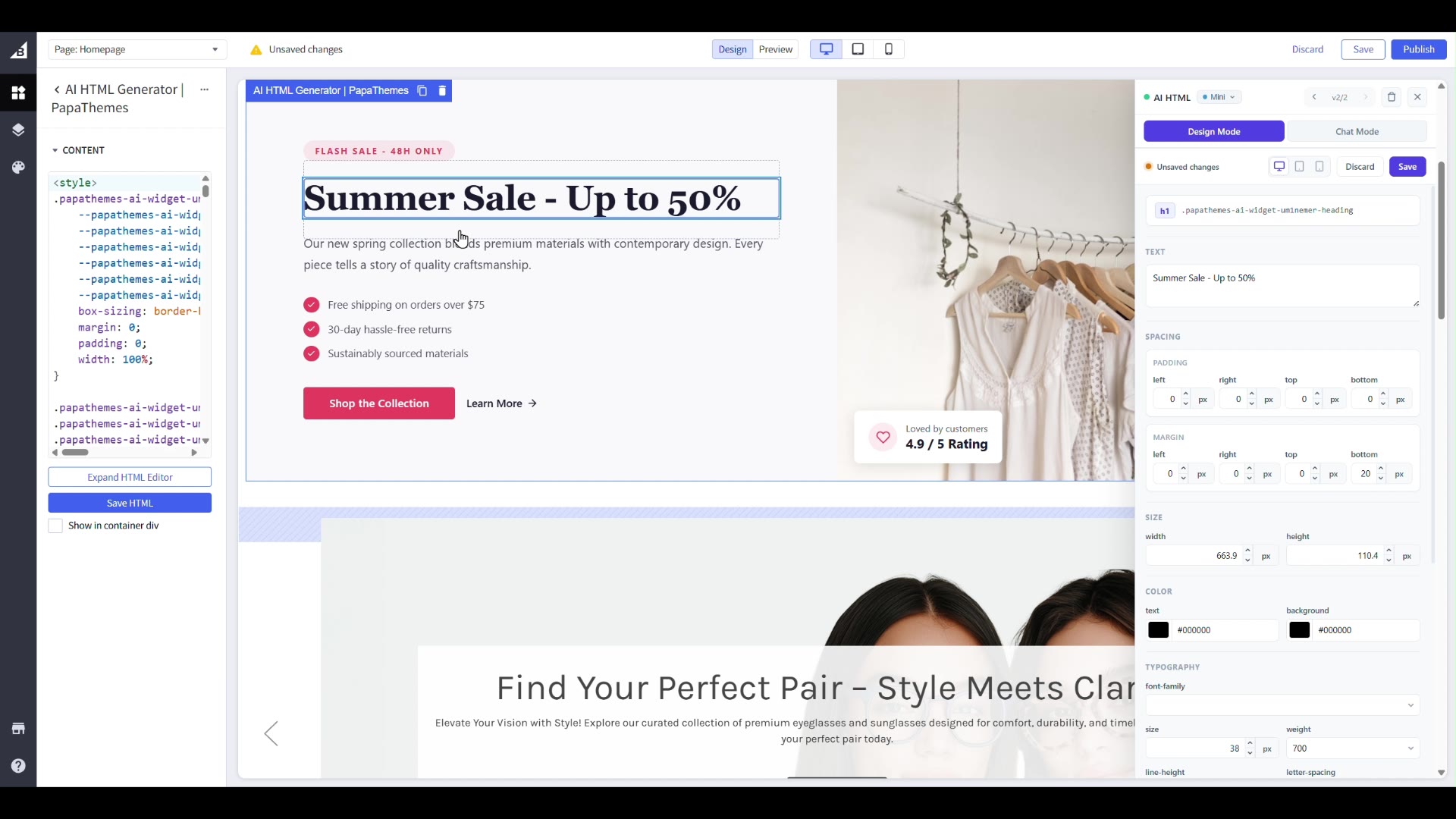 Three tabs at the top of the panel. Override only what needs to be different on each breakpoint. The widget emits a CSS rule only where you set one.
The Visual Editor is fully responsive-aware. Three tabs at the top of the panel switch your view and your scope:
- ? Desktop — your base design. Every property you set applies here.
- ? Tablet — overrides cascade down from desktop. Change only what needs to be different on
max-width: 1024px. - ? Mobile — overrides cascade down from tablet. Tweak just the few properties that need to behave differently on
max-width: 768px.
A property only emits a CSS rule at the breakpoint where you override it. No bloated display: none hacks, no duplicated style blocks. The widget keeps each layer crisp and minimal.
You can tell at a glance which properties are overridden at the current breakpoint — the affects N elements badge tells you exactly how many DOM nodes will pick up the override, and the ↺ reset button appears the instant your value differs from the saved snapshot.
Live Preview and Instant Save
Every drag of a slider, every keystroke in a numeric field, every color hex change is reflected in the canvas on the same frame. No "apply" button. No round-trip to a preview pane.
Behind the scenes, the editor compiles your changes into scoped CSS that lives next to the widget instance. When you hit Save, the widget's HTML and the scoped CSS land in your storefront atomically — no half-applied state, no rebuild step.
If you want to back out, the Discard button restores the last saved snapshot for the whole banner. Selection state is preserved, so you can keep iterating.
What's New Under the Hood
For the developers in the room — what we shipped behind the scenes:
- CSSOM-based cascade resolver — the editor reads
<style>rules from the widget's scoped stylesheets, indexes them by selector + breakpoint + specificity + source order, and computes the winning value for every property exactly the way the browser would. - Saved-snapshot diff — the ↺ reset shows up the moment your current value differs from the saved DOM, not the initial DOM. So if you saved a version yesterday and tweak today, the reset restores to yesterday's value, not the AI's first-try output.
- Paste sanitization — inline text editing strips dangerous markup on paste (scripts,
on*=event handlers,javascript:URLs) so an AI-generated paragraph can never sneak an XSS into your storefront. - URL scheme allowlist — image
srcand linkhrefattribute edits only accepthttp,https,mailto, andtelschemes. Anything else is rejected before it reaches the DOM. - Per-corner radius longhands + per-side border longhands — true
border-top-left-radius/border-right-widthgranularity, not just the shorthands.
Try It Today
The new Visual Editor ships with AI HTML Widget v1.2 and is enabled on every existing install — no migration, no opt-in toggle.
If you don't have AI HTML Widget yet, the free 14-day trial unlocks every feature on every BigCommerce theme. No code required, works on every theme, cancel anytime.
Start your free 14-day trial →
Questions or feedback? Drop us a line at contact@papathemes.com — or reply on Facebook and YouTube.