Introducing 3D Parts Diagrams for BigCommerce: Rotate, Explode, Add to Cart
New in Product Part Diagrams
Interactive 3D Parts Diagrams for BigCommerce
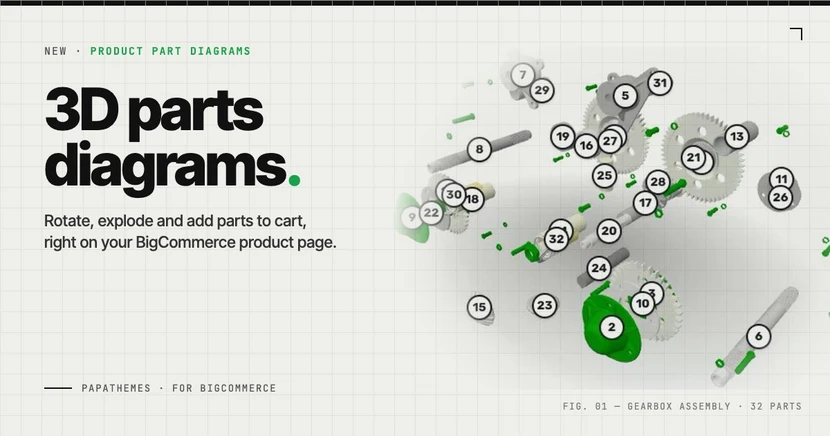
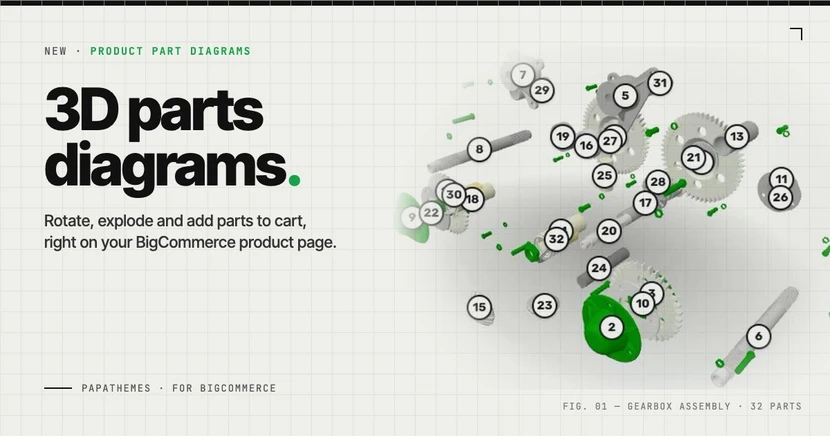
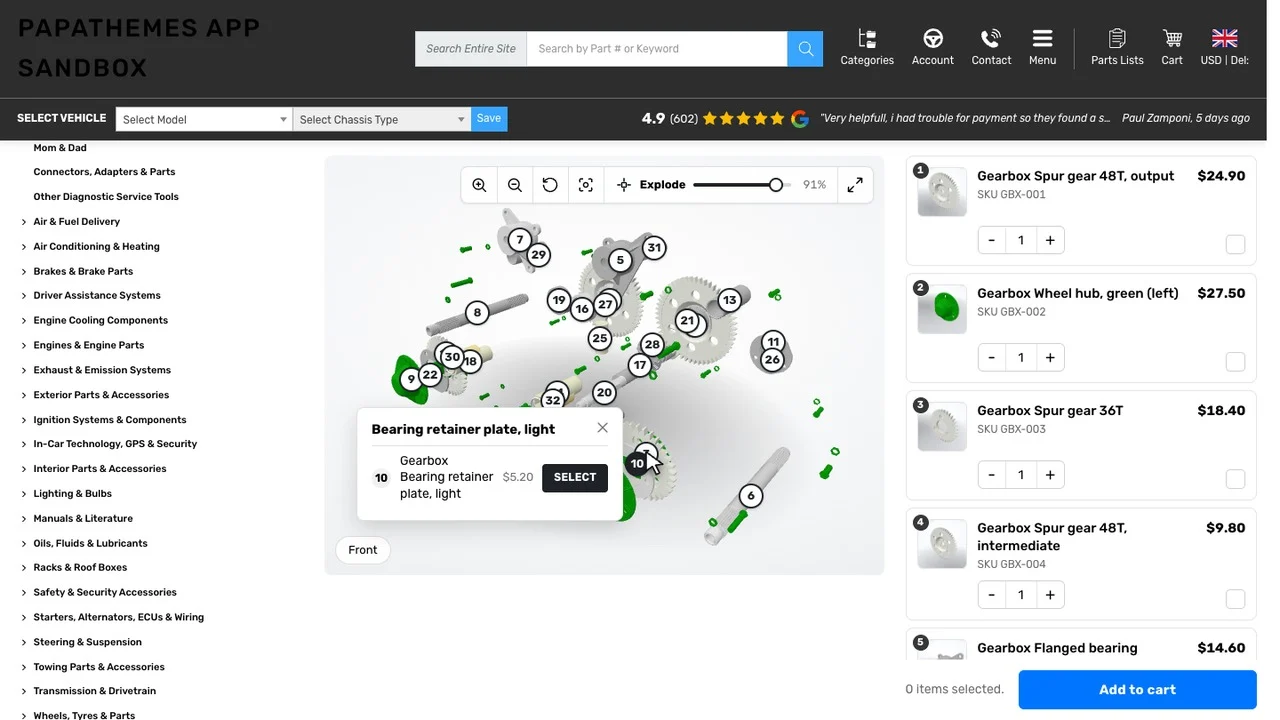
Upload your product's 3D model. Shoppers rotate it, pull it apart, click a part and add it to the cart, right on the product page. No theme code.
Get the app on BigCommerce →Product Part Diagrams has always turned flat exploded-view drawings into clickable parts catalogs. Today it goes one dimension further. With 3D diagrams, you upload your product's 3D model and shoppers can spin it, zoom in, pull the assembly apart and buy the exact part they need, without leaving the product page.
Why 3D for spare parts
A 2D drawing shows a part from one angle. On a real assembly, the bearing you need is often hidden behind a gear, and two washers look the same in a thumbnail. Shoppers guess, order the wrong part and send it back. A 3D diagram lets them look from any side, separate the parts and see exactly which piece sits where before they buy.
What your shoppers get
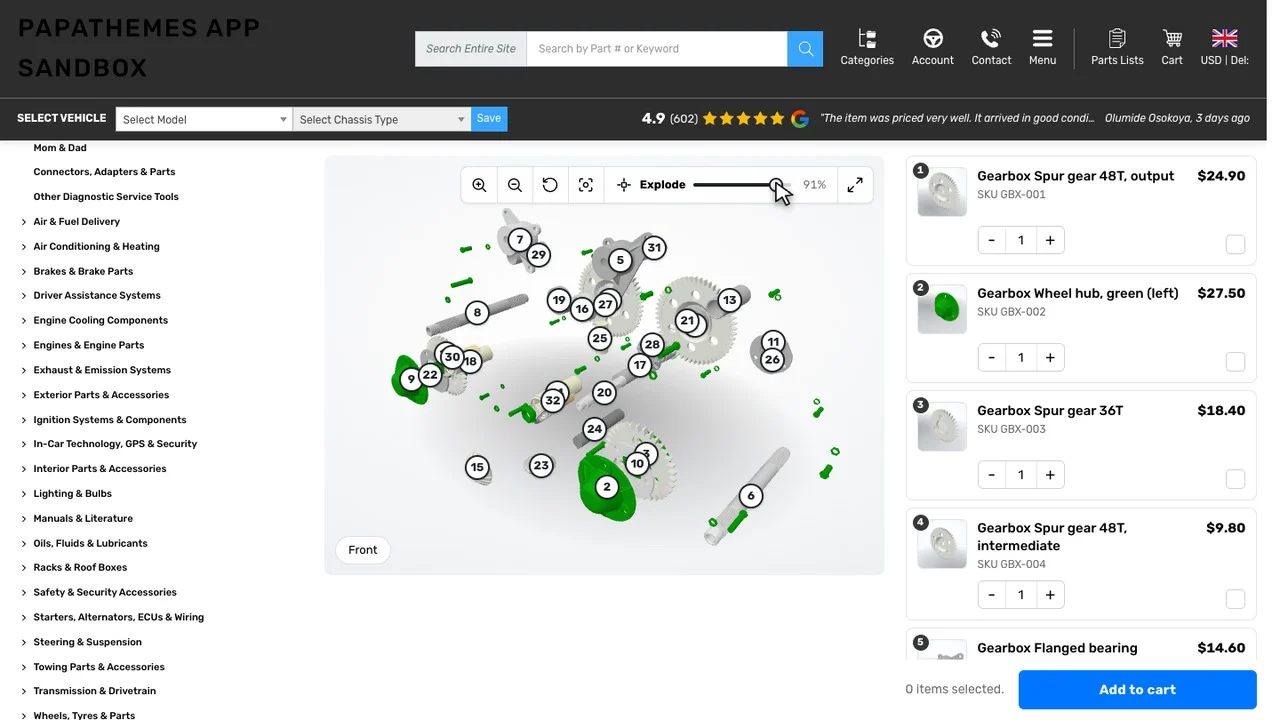
- Rotate and zoom the real product with the mouse or a finger.
- Exploded view: one slider pulls the assembly apart so the parts inside come into view.
- Click a part to see the matching product and its price, then add it to the cart.
- Add several parts at once: tick them in the parts table under the model and add them all to the cart in one click.
- Numbered pins and saved views take shoppers straight to the area they need.
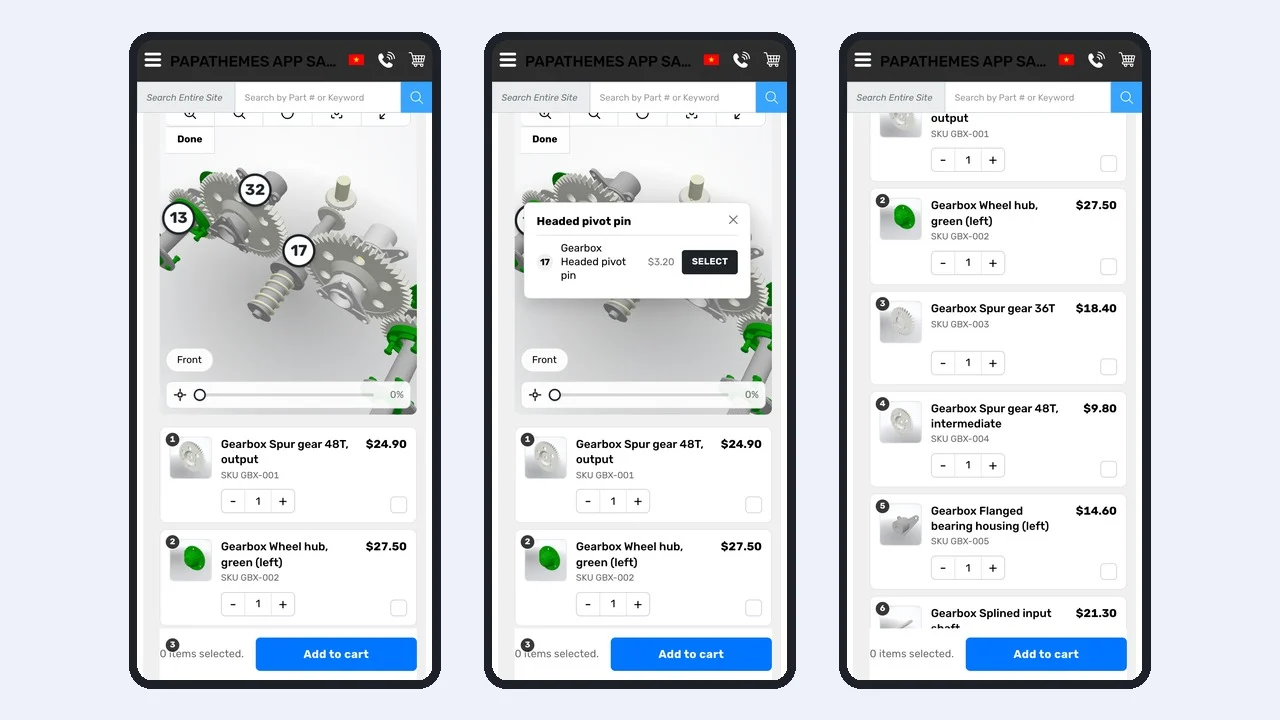
Built for phones too
On a phone, shoppers rotate with one finger and pinch to zoom, and the page still scrolls normally. Tapping a part opens the same product card, and the parts list sits right below the model.
A 3D editor made for parts
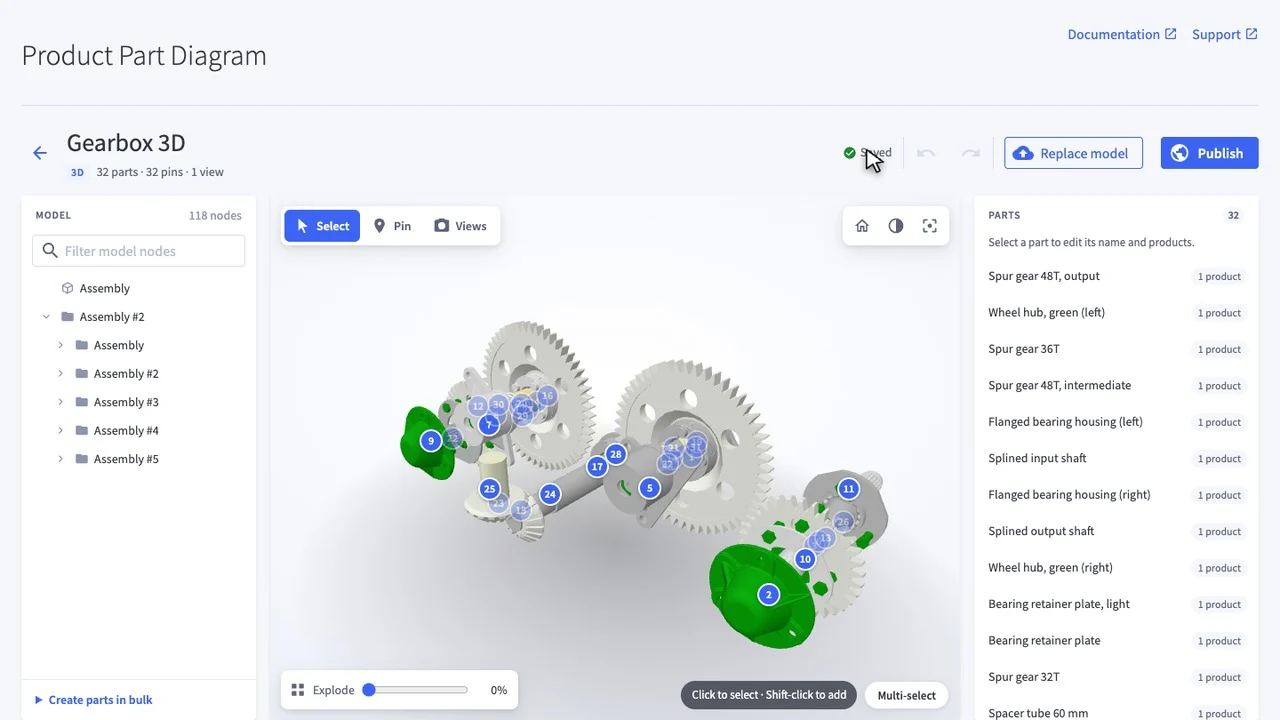
- Upload a GLB file exported from your CAD tool. It is optimised right in your browser, so large models still load fast on the storefront.
- Pick parts from the model tree, or create many parts at once, and link each one to your BigCommerce products.
- Check your work with X-ray and Highlight parts, so you can see which pieces are linked and which are not.
- Add pins and saved views, preview the result, then publish. Shoppers never see a half-finished diagram.
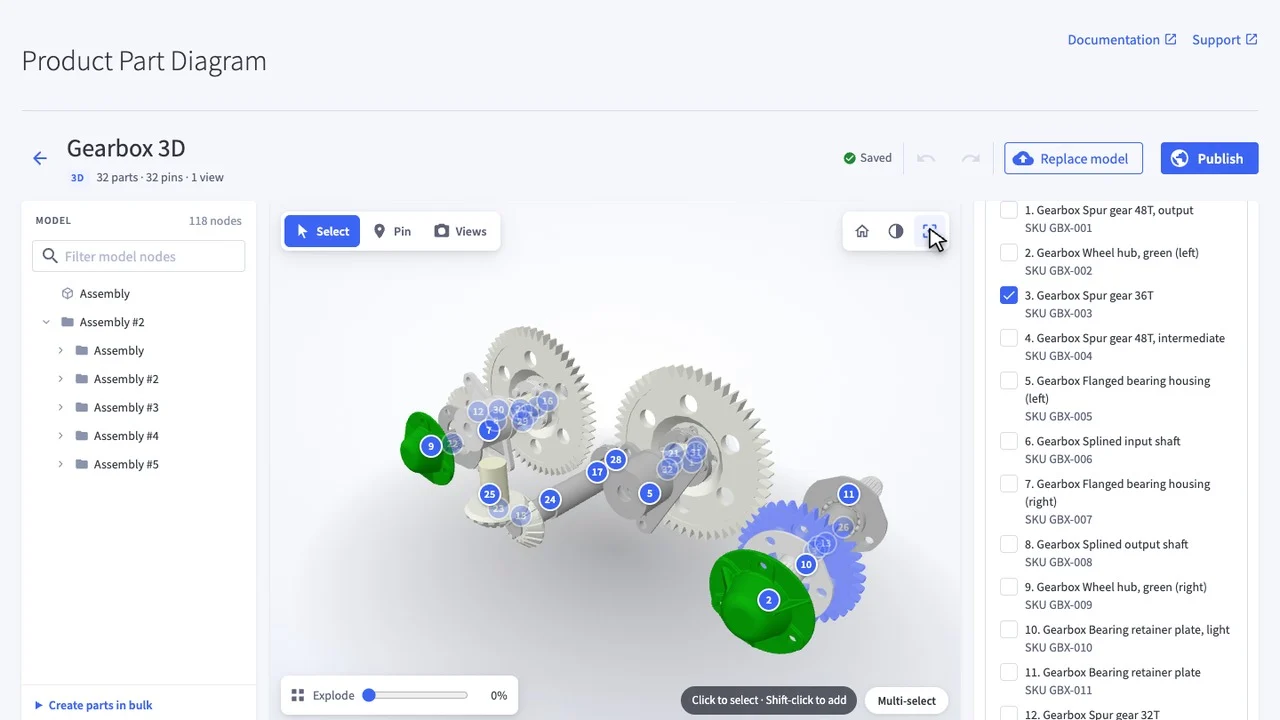
Set it up in a few minutes
- Open the Product Part Diagrams app and click Add Diagram → 3D diagram.
- Upload your GLB model.
- Select parts on the model and link them to your products.
- Add pins and saved views if you want, then click Publish.
Watch the full walkthrough:
Watch the tutorial on YouTube →
The step-by-step written guide is in the 3D Diagrams section of the user guide.
Good to know
- 3D diagrams work alongside your existing 2D diagrams. Nothing changes for the diagrams you already have.
- Diagrams appear on your product pages automatically and work with any BigCommerce theme.
- 3D diagrams need the current version of the app. If the app asks you to update, accept the update and the 3D diagram option appears in the Add Diagram menu.
- Questions, or want help fitting the diagram to your theme? Contact our support team.
Try 3D parts diagrams on your store
Install Product Part Diagrams from the BigCommerce App Marketplace and publish your first 3D diagram today.
Get the app →