


30 AI Prompts to Build Any BigCommerce Page Section — No Developer Needed
You have an idea for your store. Maybe it's a sleek hero banner for your spring sale. A wholesale inquiry form. A testimonial carousel that actually looks professional. But between hiring a developer, waiting days for revisions, and spending hundreds of dollars per page — the idea stays an idea.
What if you could just describe what you want and get production-ready code in minutes?
That's exactly what PapaThemes AI Widgets does. It turns plain English prompts into fully functional BigCommerce page sections — hero banners, forms, galleries, pricing tables, and more — without writing a single line of code.
In this post, we're sharing 30 ready-to-use prompts organized by category, so you can copy, paste, and customize them for your own store. Each prompt is a real example that works with the AI Widgets chat interface.
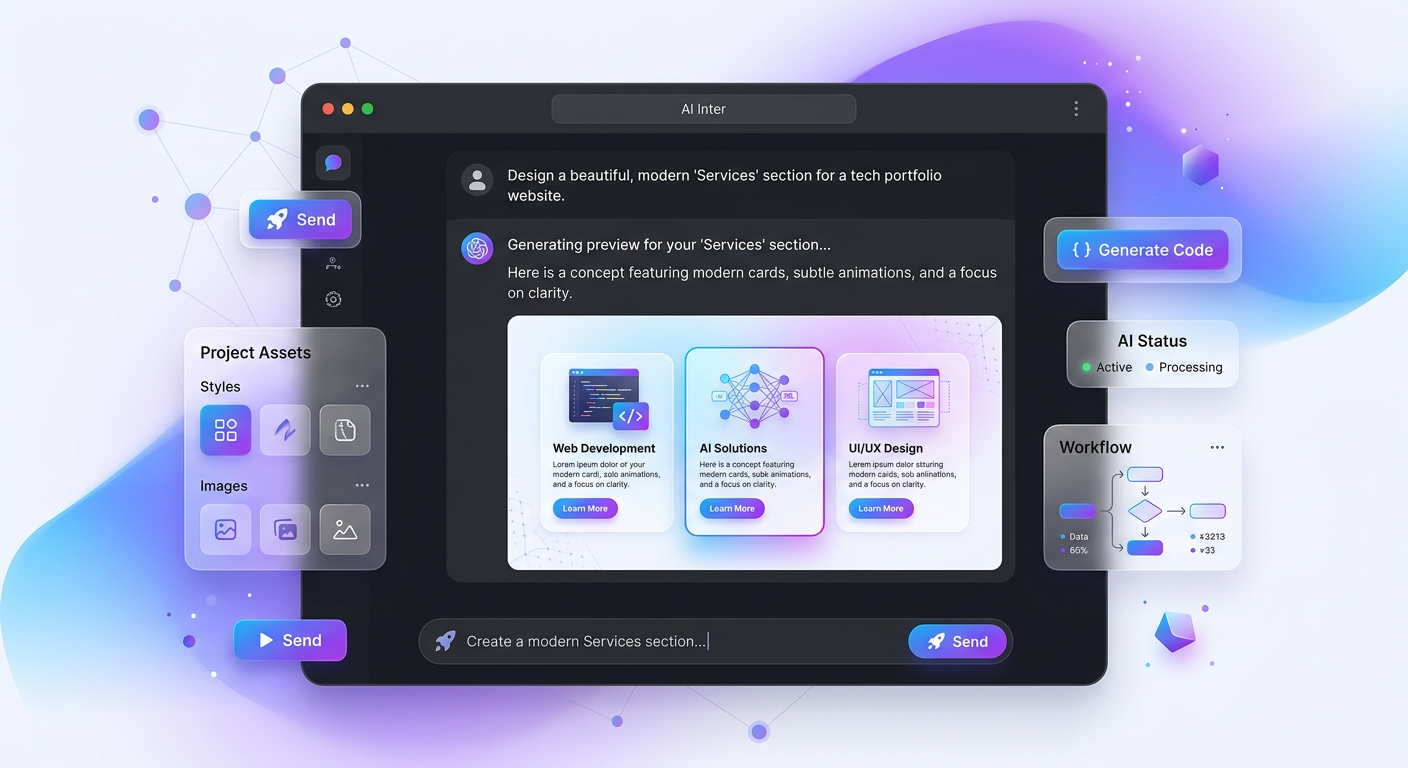
How It Works: From Prompt to Page in 3 Steps
Before we dive into the prompts, here's how simple the process is:
- Install AI Widgets from the BigCommerce App Marketplace (free to install)
- Open the AI HTML Widget in Page Builder and describe what you want
- Preview the result on desktop, tablet, and mobile — then publish
The AI generates clean HTML, CSS, and JavaScript that's automatically scoped to avoid conflicts with your existing theme. Every change is version-controlled, so you can always go back.
? Full documentation: AI Widgets Guide →
Now let's get to the prompts.
Hero Banners & Headers
Hero banners are the first thing visitors see. These prompts create attention-grabbing headers with calls to action, gradients, and responsive layouts.
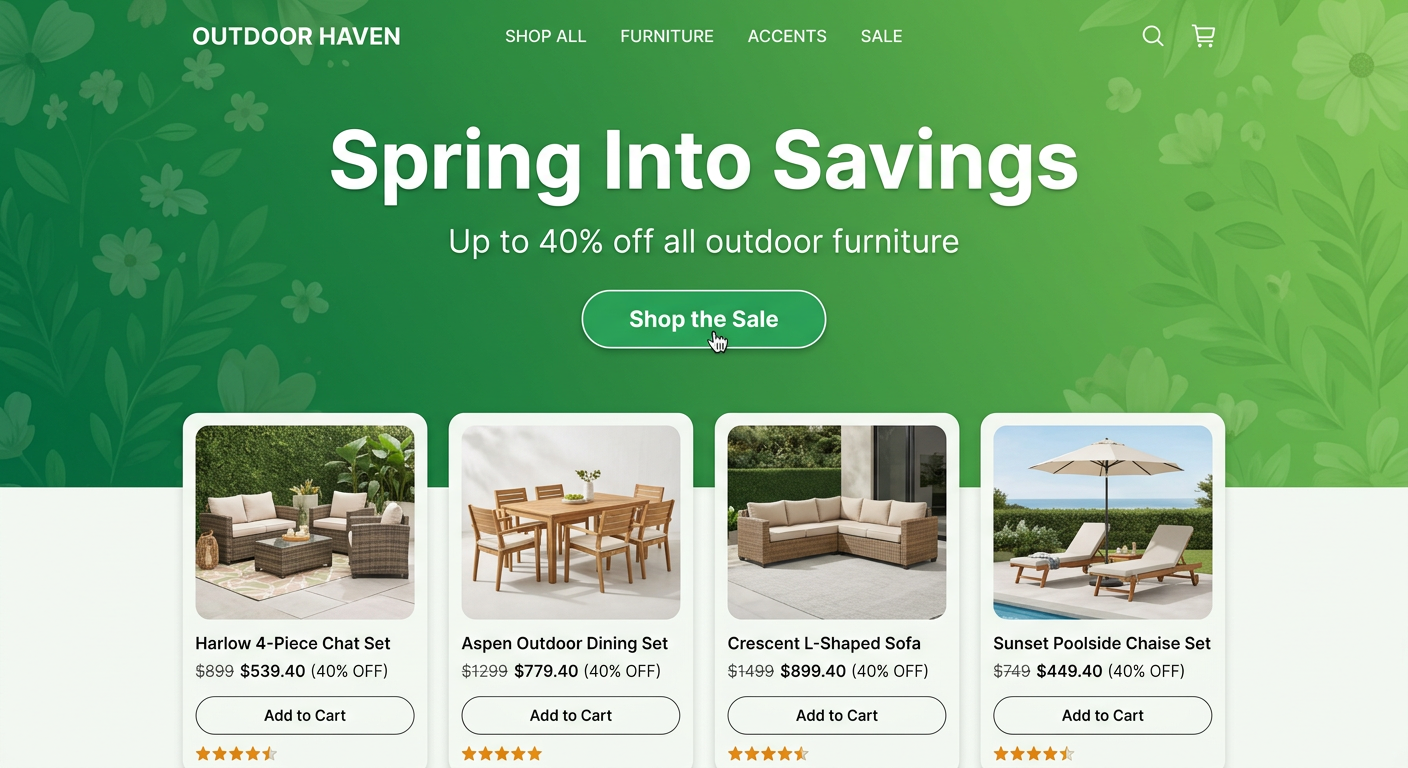
Prompt 1: Spring Sale Hero Banner
Create a full-width hero banner for a spring sale. Use a soft green-to-white gradient background. Add a large headline "Spring Into Savings" with a subheading "Up to 40% off all outdoor furniture — ends March 31." Include a bright green CTA button "Shop the Sale" and a secondary text link "View All Collections." Make it mobile-responsive with the text stacking vertically on small screens.
Prompt 2: Video Background Hero
Build a hero section with a background video placeholder (16:9 aspect ratio, dark overlay at 60% opacity). Overlay a centered white headline "Handcrafted Leather Goods Since 1987" with a thin serif font. Below it, add a tagline "Free shipping on orders over $75" and a white-outlined CTA button "Explore Our Collection." On mobile, replace the video with a static dark background.
Prompt 3: Split Hero with Image
Create a two-column hero section. Left column: headline "Transform Your Workspace" in bold sans-serif, a paragraph "Ergonomic furniture designed for all-day comfort. Trusted by 10,000+ remote workers." and two buttons side by side — "Shop Desks" (filled blue) and "Shop Chairs" (outlined blue). Right column: a large product image placeholder with rounded corners and a subtle shadow. Stack columns vertically on mobile with the image on top.
Prompt 4: Animated Stats Hero
Design a hero section with a dark navy background. Center a headline "Trusted by Growing Businesses Worldwide." Below it, show 4 animated counters in a row: "10,000+" (Happy Customers), "44+" (Premium Themes), "99.9%" (Uptime), "24/7" (Support). Each counter should animate from 0 to the final number when it scrolls into view. Add a CTA button "Start Free Trial" below the counters.
? Every BigCommerce store gets FREE $5 credits
Enough to create dozens of professional sections — no credit card required.
Try AI Widgets Free →Product Showcases & Feature Grids
Showcase your products and features with interactive grids, comparison tables, and hover effects.
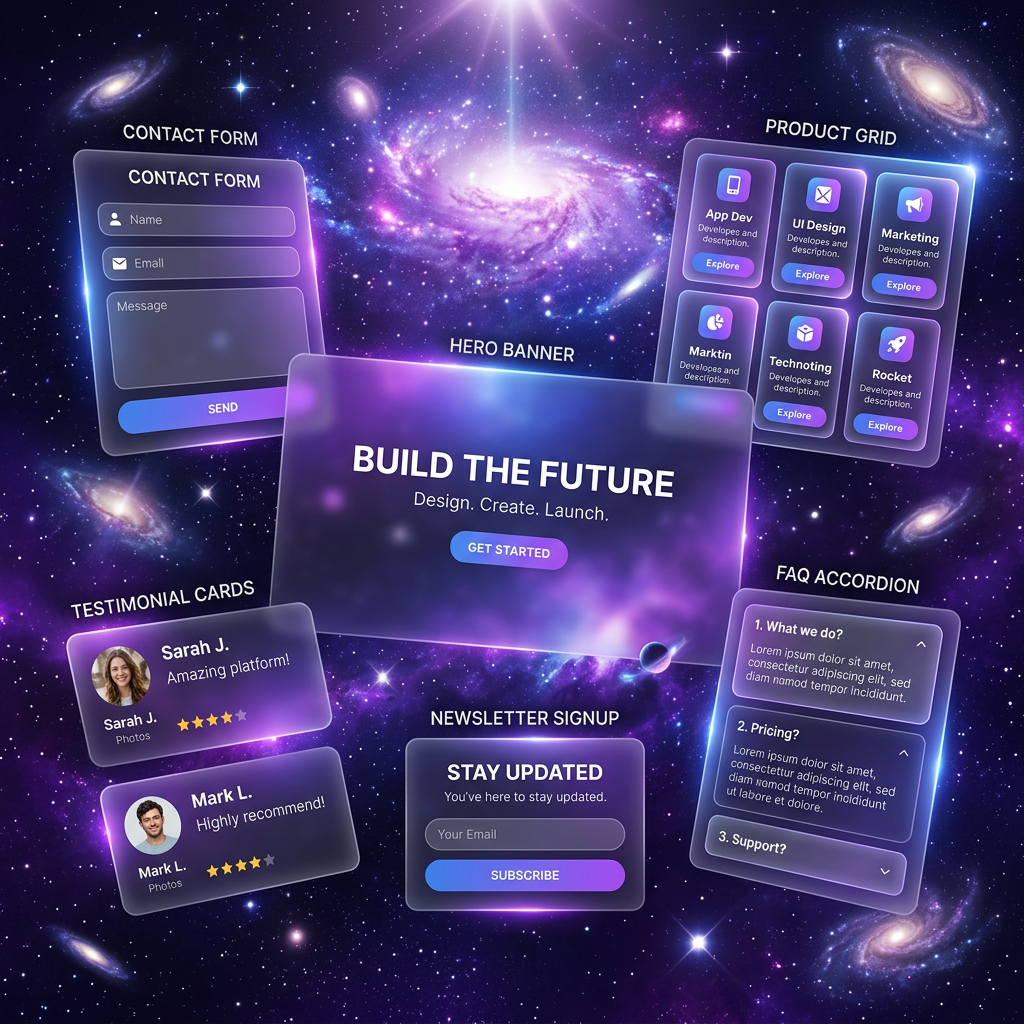
Prompt 5: Product Feature Grid
Create a 3-column feature grid showcasing product benefits. Each card has: an icon placeholder (64x64), a bold title, and 2 lines of description text. Cards: 1) "Lightning Fast" — "Pages load in under 2 seconds with optimized code" 2) "Mobile First" — "Looks perfect on every device, from phones to 4K monitors" 3) "SEO Ready" — "Built-in schema markup and semantic HTML for better rankings." Add a subtle hover effect that lifts each card with a shadow. On mobile, stack to single column.
Prompt 6: Before/After Product Comparison
Build an interactive before/after image comparison slider. Show two images side by side with a draggable divider in the middle. Left side labeled "Before" and right side labeled "After." The divider should have a circular handle with left/right arrows. Include a title above: "See the Difference" and a subtitle "Drag the slider to compare." Make it touch-friendly for mobile users.
Prompt 7: Product Comparison Table
Create a product comparison table with 3 columns: "Basic Plan," "Pro Plan" (highlighted as most popular), and "Enterprise Plan." Rows: Price ($29/mo, $79/mo, Custom), Storage (10GB, 100GB, Unlimited), Users (1, 10, Unlimited), Support (Email, Priority, Dedicated), API Access (No, Yes, Yes), Custom Domain (No, Yes, Yes). Highlight the "Pro Plan" column with a blue border and a "Most Popular" badge. Add "Choose Plan" buttons at the bottom of each column. Make it horizontally scrollable on mobile.
Prompt 8: Category Showcase with Hover Effect
Design a 2x3 grid of category cards. Each card shows a large background image placeholder with a dark gradient overlay at the bottom. Display the category name in white bold text. Categories: "Women's Fashion," "Men's Collection," "Kids & Baby," "Accessories," "Shoes," "Sale Items." On hover, scale the image slightly (1.05x) and increase overlay brightness. Each card links to its category page. On mobile, show as 2x3 grid with smaller cards.
Forms & Lead Capture
Turn visitors into customers with professional forms that capture exactly the information you need.
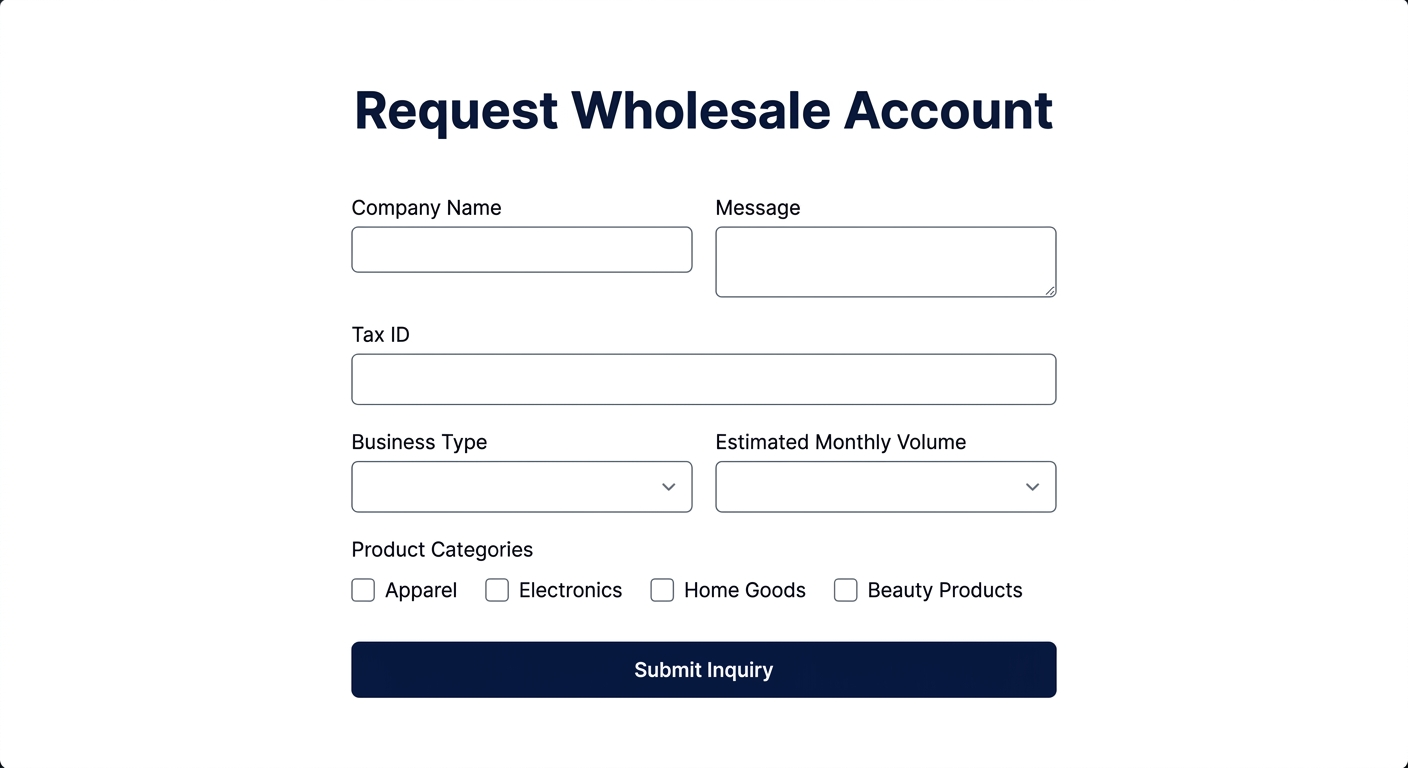
Prompt 9: Wholesale Inquiry Form
Build a professional wholesale inquiry form with these fields: Company Name (required), Contact Person (required), Email (required), Phone, Website URL, Business Type (dropdown: Retailer, Distributor, Online Store, Other), Estimated Monthly Order Volume (dropdown: Under $1,000, $1,000-$5,000, $5,000-$20,000, $20,000+), Product Categories of Interest (checkboxes: Furniture, Lighting, Decor, Outdoor, All), and a Message textarea. Include a "Submit Inquiry" button and a note "We respond within 24 hours." Style it clean and professional with a white card on a light gray background.
Prompt 10: Multi-Step Contact Form
Create a multi-step contact form with a progress bar showing 3 steps. Step 1 "About You": Name, Email, Phone. Step 2 "Your Project": Project Type (dropdown: New Website, Redesign, Custom Feature, Bug Fix), Budget Range (radio: Under $1K, $1K-$5K, $5K-$10K, $10K+), Timeline (dropdown: ASAP, 1-2 months, 3-6 months, Flexible). Step 3 "Details": Description (textarea), File Upload button, and Terms checkbox. Show Next/Previous buttons. Final step shows a "Submit Request" button. Add smooth slide transitions between steps.
Prompt 11: Newsletter Popup with Discount
Design a newsletter signup section (not a popup, but an in-page section) with a split layout. Left side: large text "Get 15% Off Your First Order" with smaller text "Join 25,000+ subscribers for exclusive deals, new arrivals, and style tips." Right side: Email input field with a "Subscribe" button. Below the input, add a small text "No spam, unsubscribe anytime." Use a warm coral/peach background color. Make it full-width and mobile-stack.
Prompt 12: Product Inquiry Form (B2B)
Create a B2B product inquiry form. Header: "Request a Custom Quote." Fields: Full Name, Company, Email, Phone, Product SKU or Name (text input), Quantity Needed (number input), Customization Requirements (textarea with placeholder "Describe any custom colors, sizes, branding, or packaging needs"), Preferred Delivery Date (date picker), Shipping Country (dropdown with USA, Canada, UK, Germany, Australia, Other). Add a "Request Quote" button and a note: "Custom quotes are typically provided within 2 business days." Use a clean white design with blue accent colors.
? Pro tip: Include real content in your prompts
Using actual field names, dropdown options, and placeholder text produces much better results than generic descriptions. The AI adapts the layout to fit your real content — so be specific!
Testimonials & Social Proof
Build trust with your visitors through customer reviews, trust badges, and social proof sections.
Prompt 13: Testimonial Carousel
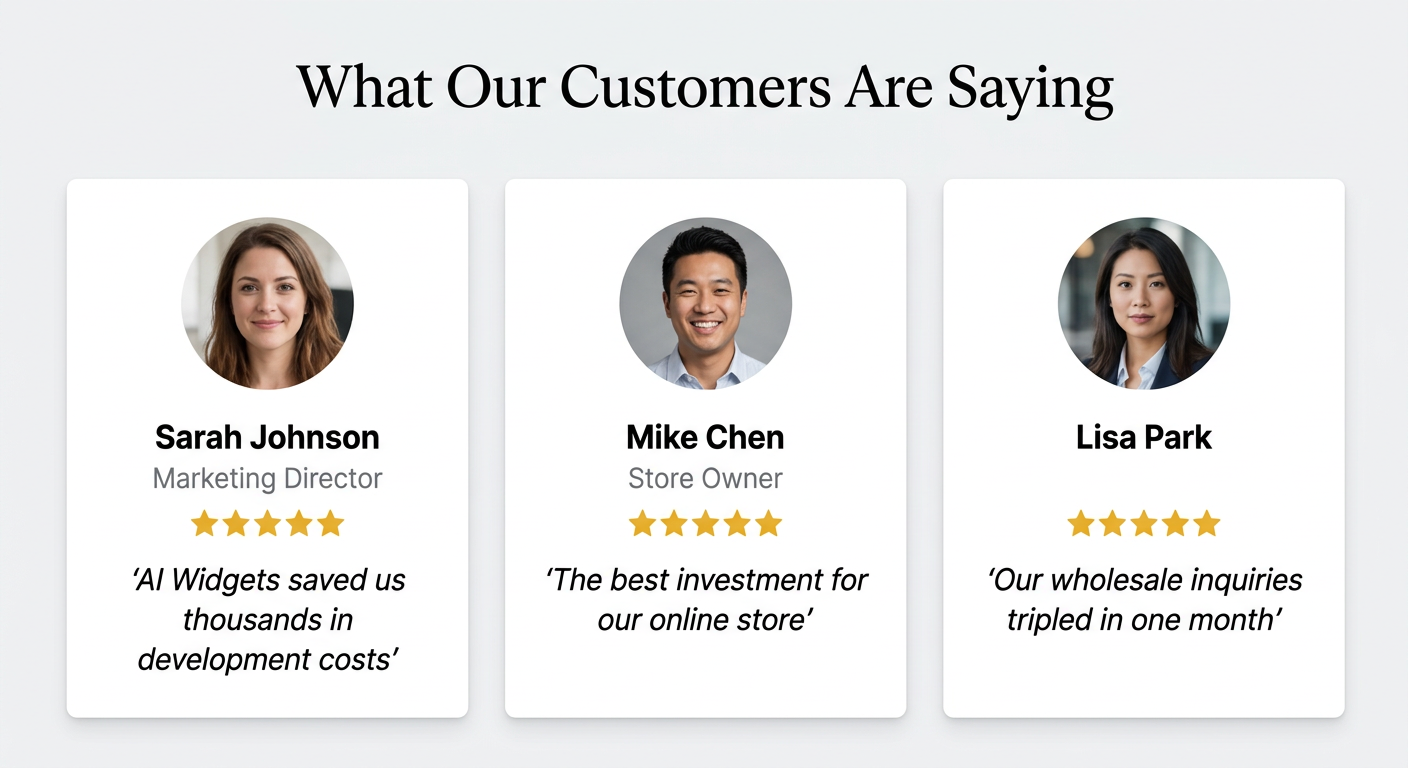
Build a testimonial carousel that shows one review at a time. Each testimonial includes: a customer photo placeholder (circular, 80px), customer name in bold, their role and company, a 5-star rating display, and the testimonial text in italic. Add left/right navigation arrows and dot indicators below. Auto-rotate every 5 seconds with a smooth fade transition. Pause on hover. Include 4 sample testimonials about an e-commerce platform. Use a light background with a subtle quotation mark graphic in the background.
Prompt 14: Trust Badges & Partner Logos
Create a "Trusted By" section with a centered heading "Brands That Trust Us." Below, show a horizontal scrolling logo marquee with 8 placeholder logos (grayscale, 120px wide). The marquee should auto-scroll slowly from right to left and pause on hover. Below the marquee, add 4 trust badges in a row: "30-Day Returns" (with a return icon), "Secure Checkout" (lock icon), "Free Shipping $50+" (truck icon), "24/7 Support" (headset icon). Each badge has an icon and text. On mobile, show badges in a 2x2 grid.
Prompt 15: Review Statistics Dashboard
Design a customer reviews summary section. Show a large average rating "4.8 out of 5" with filled stars. Next to it, display a breakdown bar chart: 5 stars (72%), 4 stars (18%), 3 stars (6%), 2 stars (3%), 1 star (1%). Each bar is horizontal with a green fill proportional to percentage. Below, add "Based on 2,847 verified reviews." Include a "Write a Review" button. Style it in a clean white card with rounded corners.
FAQ & Content Sections
Help customers find answers quickly and keep them engaged with organized content sections.
Prompt 16: Animated FAQ Accordion
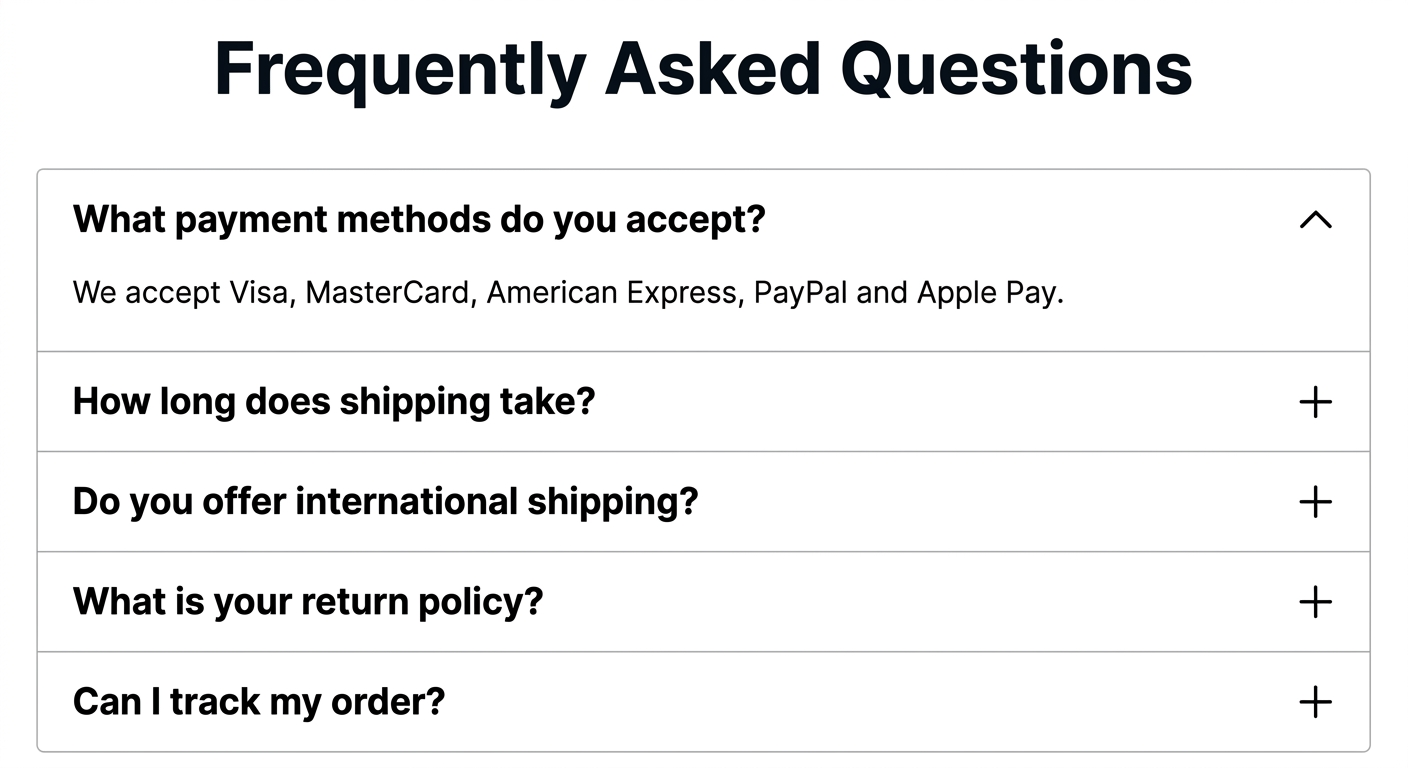
Create an FAQ section with the title "Frequently Asked Questions" and a subtitle "Can't find your answer? Contact our support team." Build 8 accordion items that expand/collapse with smooth animation. Each item has a question in bold and a plus/minus icon that rotates on toggle. Questions: 1) What payment methods do you accept? 2) How long does shipping take? 3) Do you offer international shipping? 4) What is your return policy? 5) Can I track my order? 6) Do you offer bulk discounts? 7) How do I contact customer support? 8) Are your products eco-friendly? Add sample answer text for each. Only one item open at a time.
Prompt 17: Timeline / How It Works
Build a vertical timeline section titled "How It Works." Show 4 steps with alternating left/right layout: Step 1 "Browse & Select" — "Explore our catalog of 500+ products and add favorites to your cart." Step 2 "Customize" — "Choose colors, sizes, and add personalization to make it yours." Step 3 "Checkout" — "Secure payment with multiple options including buy-now-pay-later." Step 4 "Enjoy" — "Free delivery within 5-7 business days with real-time tracking." Each step has a numbered circle on the timeline line, a title, description, and an image placeholder. Animate steps to fade in as user scrolls down.
Prompt 18: Tabbed Content Section
Create a tabbed content section with 4 tabs: "Features," "Specifications," "Reviews," and "Shipping." Tab "Features": show a 2-column list of 8 features with checkmark icons. Tab "Specifications": show a striped table with product specs (Material, Weight, Dimensions, Color Options, Warranty). Tab "Reviews": show 3 customer review cards with star ratings. Tab "Shipping": show shipping rates table and delivery timeline. Use a clean design with the active tab highlighted in blue. Smooth fade transition between tabs. Tabs become a dropdown on mobile.
Ready to build your first section?
Copy any prompt above, paste it in the AI Widgets chat, and watch it come to life.
Get Started Free →Countdown Timers & Urgency
Create urgency with countdown timers and stock indicators that drive immediate action.

Prompt 19: Flash Sale Countdown
Create a flash sale countdown banner. Dark background with a gradient from purple to deep blue. Large headline "Flash Sale Ends In:" followed by a countdown timer showing Days, Hours, Minutes, Seconds in separate boxes with white text. Below the timer, show "Up to 60% Off Selected Items" and a yellow CTA button "Shop Flash Sale." Set the countdown to 48 hours from when the page loads. When the timer reaches zero, replace the entire section with "Sale Has Ended — Sign up for notifications on our next event."
Prompt 20: Limited Stock Indicator
Build a product urgency section. Show a progress bar that's 85% filled in red with text "Only 7 left in stock!" above it. Below, add a small section: "? 23 people are viewing this right now" with a subtle pulse animation. Then show "Free shipping if you order within:" followed by a small countdown timer (Hours:Minutes) counting down to the end of today. Style it compact so it can fit in a sidebar or product page section.
Gallery & Media
Showcase your products with interactive galleries, lightboxes, and social feeds.
Prompt 21: Masonry Image Gallery
Create a masonry-style image gallery with 8 image placeholders in varying heights (tall, medium, short). Each image should have a hover overlay showing a title and a "View" icon. Clicking an image opens a lightbox with previous/next navigation and a close button. The lightbox darkens the background. Include a filter bar at the top with category buttons: "All," "Living Room," "Bedroom," "Kitchen," "Outdoor." Clicking a category filters images with a smooth animation. On mobile, show as a 2-column grid.
Prompt 22: Instagram-Style Feed
Build an Instagram feed section titled "Follow Us @YourBrand." Show a 4x2 grid of square image placeholders. Each image has a hover overlay showing a heart icon with like count and a comment icon with count. Below the grid, add a "Follow on Instagram" button linking to instagram.com. Style the section with a clean white background and subtle border around each image. On mobile, show as a 2x4 grid. Include the Instagram gradient logo next to the section title.
Navigation & Menus
Improve your site's navigation with mega menus, sticky sidebars, and more.
Prompt 23: Mega Menu Dropdown
Create a mega menu section (for demonstration) with 4 main categories. When hovering a category, a large dropdown appears with: Left column showing subcategories as links, middle column showing featured products (image, name, price), right column showing a promotional banner image with "New Arrivals" text. Categories: "Men" (Shirts, Pants, Shoes, Accessories), "Women" (Dresses, Tops, Shoes, Jewelry), "Kids" (Boys, Girls, Baby, School), "Sale" (Clearance, Bundle Deals, Last Chance). Smooth open/close animation. Full-width dropdown. Use clean borders and a white background.
Prompt 24: Sticky Sidebar Navigation
Build a sticky sidebar navigation for a long page. Show a vertical list of section links: "Overview," "Features," "Gallery," "Specifications," "Reviews," "FAQ." The active section should be highlighted with a blue left border as the user scrolls. Clicking a link smooth-scrolls to that section. The sidebar should become a horizontal sticky bar at the top on mobile. Add a small progress indicator showing how far down the page the user has scrolled.
Banners & Promotions
Announce sales, holidays, and special offers with eye-catching banners.
Prompt 25: Multi-Currency Shipping Banner
Create an announcement bar at the top of the page with a marquee scrolling message. Messages: "Free shipping on orders over $50 (USD)" → "International shipping to 40+ countries ?" → "Now accepting EUR, GBP, AUD, and CAD" → "GDPR-compliant checkout for EU customers." Use a slim design (40px height) with a dark background and white text. Add a small close/dismiss X button on the right. The bar should stay fixed at the top when scrolling.
Prompt 26: Holiday Promo Banner (Ramadan)
Design a promotional banner for Ramadan. Use a deep purple/gold color scheme with a crescent moon and lantern decorative elements (CSS-only, no images needed). Headline: "Ramadan Kareem — Special Savings." Subtitle: "Enjoy 20% off with code RAMADAN20 — valid until April 10." Add a "Shop Now" button in gold. Include a small countdown timer until the offer expires. Support RTL text layout. Make it culturally respectful and visually elegant with geometric Islamic-pattern CSS borders.
Prompt 27: Exit Intent Section
Build a "Before You Go" section that could be placed at the bottom of any page. Show a friendly message: "Wait — here's 10% off your first order!" with an email input field and "Get My Discount" button. Below, add small trust indicators: "No spam ever," "Unsubscribe anytime," "Discount applied automatically." Use a warm, inviting design with a light yellow background and rounded corners. Add a small confetti animation that plays once when the section scrolls into view.
? Target all your markets
AI Widgets supports multi-currency, GDPR-compliant designs, RTL layouts for Arabic customers, and localized content — perfect for stores selling to the US, Europe, Australia, and Western Asia.
Industry-Specific Sections
These prompts show how AI Widgets adapts to any industry — restaurants, real estate, fitness, and more.
Prompt 28: Restaurant Menu Section
Create a restaurant-style menu section with tabs for "Appetizers," "Main Course," "Desserts," and "Drinks." Each tab shows a list of items with: item name, short description, price (right-aligned), and a "dietary" badge (V for vegetarian, GF for gluten-free, S for spicy). Add a section header with the restaurant name and a decorative divider. Use an elegant serif font for item names and a warm cream/brown color scheme. On mobile, tabs become a horizontal scroll bar.
Prompt 29: Real Estate Property Cards
Build a property listing grid with 3 cards per row. Each card shows: a large image placeholder (4:3 ratio), a "For Sale" or "For Rent" badge in the top-left corner, price in bold below the image, property address, and a row of specs: "3 Beds | 2 Baths | 1,450 sqft." Add a heart/favorite icon in the top-right corner. Below specs, show an agent name and "Schedule Viewing" button. Cards should have a subtle shadow and lift on hover. On mobile, show one card per row.
Prompt 30: Fitness Class Schedule
Create a weekly class schedule displayed as a responsive table/grid. Columns for each day (Mon-Sun), rows for time slots (6am, 9am, 12pm, 5pm, 7pm). Populate with class names: "Yoga," "HIIT," "Spin," "Boxing," "Pilates," "Strength." Each class has a color-coded background (yoga=green, HIIT=red, spin=blue, boxing=orange, pilates=purple, strength=gray). Clicking a class shows a tooltip with: class description, instructor name, duration, and "Book Now" link. On mobile, show as a list grouped by day.
Tips for Writing Better Prompts
Getting great results from AI Widgets comes down to how you write your prompts. Here are some tips that make a real difference:
Be Specific About Layout — Instead of "create a section with some products," specify the grid structure, number of columns, and how it should respond on mobile. The more detail you give, the closer the first result will be to what you want.
Describe Interactions — Don't forget to mention hover effects, click behaviors, animations, and transitions. The AI can build interactive elements — but only if you ask for them.
Include Real Content — Using actual text, numbers, and product names in your prompts produces better results than placeholder text. The AI adapts the layout to fit your real content.
Specify Colors and Fonts — If you have brand guidelines, mention your hex colors, font families, and spacing preferences. For example: "Use our brand blue #2563EB for buttons and Inter font for all text."
Iterate in the Chat — Your first prompt gets you 80% there. Use follow-up messages to refine:
- "Make the buttons larger and add more padding"
- "Change the background to a subtle gradient"
- "Add a fade-in animation when scrolling into view"
- "Make it RTL-compatible for Arabic customers"
Think About Mobile First — Always mention how the section should behave on mobile. Common patterns: stack columns vertically, hide non-essential elements, make buttons full-width, convert tables to cards.
Real-World Case Studies
Case Study 1: Pet Supply Store — Custom Category Page
The challenge: A pet supply store needed unique landing pages for each pet category but couldn't afford $500+ per page for custom development.
The prompts they used:
Create a category hero for "Dog Supplies" with a playful design. Show a large image area on the left, with the heading "Everything Your Best Friend Needs" on the right. Add 4 quick-link buttons: "Food & Treats," "Toys," "Health," "Grooming." Use warm orange and brown tones.
Build a "Shop by Dog Size" section with 3 cards: Small Dogs (under 20 lbs), Medium Dogs (20-60 lbs), Large Dogs (60+ lbs). Each card has a dog silhouette icon, the size label, and "Shop Now" button. Cards use different shades of the same warm orange.
Result: 6 category pages created in one afternoon. Zero development cost.
Case Study 2: B2B Electronics Distributor — Wholesale Portal
The challenge: A B2B electronics distributor needed a professional wholesale inquiry system but their BigCommerce theme only had a basic contact form.
The prompt they used:
Create a professional wholesale account application form. Fields: Company Name, Tax ID / EIN Number, Business Type (dropdown: Retailer, Reseller, System Integrator, Government, Education), Years in Business, Annual Revenue Range, Primary Contact Name, Email, Phone, Shipping Address (Street, City, State, ZIP, Country), Product Categories of Interest (checkboxes: Networking, Storage, Peripherals, Components, Software), Estimated Monthly Order Volume, Current Distributor (optional), How Did You Hear About Us (dropdown). Include terms agreement checkbox and "Apply for Wholesale Account" button. Use a corporate blue color scheme with a clean, trustworthy design.
Result: Wholesale inquiries increased 3x because the form captured exactly the information the sales team needed — no back-and-forth emails.
Case Study 3: Fashion Boutique — Seasonal Campaign
The challenge: A fashion boutique wanted to create a Ramadan collection landing page that resonated with their Middle Eastern customers.
The prompt they used:
Design a Ramadan fashion collection landing page section. Use elegant purple and gold colors with subtle Islamic geometric patterns as CSS borders. Include RTL text support. Hero area with "Ramadan Collection 2026" headline, a "Modest Fashion for Every Occasion" subheading, and "Shop Collection" button. Below, show a 4-column product grid with image, product name, price in both USD and AED. Add a "Free Gift Wrapping" banner. Make the design culturally respectful and luxurious.
Result: A culturally authentic landing page that their team couldn't have built without hiring a specialized designer. Created in 20 minutes.
Cost Comparison: AI Widgets vs. Traditional Development
| Approach | Cost per Section | Time | Revisions |
|---|---|---|---|
| Hire a developer | $200–$500 | 2–5 days | Limited (extra $) |
| Use a page builder template | Free–$50 | 1–2 hours | Template-limited |
| Learn to code it yourself | Free (your time) | 4–8 hours | Unlimited (if you learn) |
| AI Widgets | $0.01–$0.10 | 3–15 minutes | Unlimited in chat |
With AI Widgets' pay-as-you-go model, you choose your AI tier:
- Mini ($24/1M tokens) — Fast, great for simple sections
- Standard ($66/1M tokens) — Balanced quality and speed (recommended)
- Max ($108/1M tokens) — Most powerful for complex layouts
Every BigCommerce store owner gets free $5 credits to start — enough for dozens of sections.
? Start Building Today — It's Free
Install AI Widgets, copy any prompt from this post, and create your first section in minutes.
Try AI Widgets Free →Get Started Today
Ready to build your first section? Here's what to do:
- Install PapaThemes AI Widgets (free)
- Open any page in BigCommerce Page Builder
- Drag the AI HTML Widget onto your page
- Copy any prompt from this post and paste it in the chat
- Preview, refine, and publish
Your free $5 credits are waiting. No developer needed. No coding required. Just describe what you want, and watch it appear.
Have a creative prompt that worked well for your store? Share it with us on Facebook or X — we'd love to feature it in our next roundup.
Frequently Asked Questions
What is PapaThemes AI Widgets?
AI Widgets is a BigCommerce Page Builder app that turns plain English prompts into fully functional page sections — hero banners, forms, galleries, pricing tables, and more — without writing code.
How much does AI Widgets cost per section?
AI Widgets costs $0.01–$0.10 per section with pay-as-you-go pricing. Choose from Mini ($24/1M tokens), Standard ($66/1M tokens), or Max ($108/1M tokens) tiers. Every store gets free $5 credits to start.
Do I need coding skills to use AI Widgets?
No. You just describe what you want in plain English. The AI generates clean HTML, CSS, and JavaScript that's automatically scoped to avoid conflicts with your theme.
How long does it take to create a page section?
Most sections take 3–15 minutes from prompt to published. Compare this to 2–5 days with a developer or 4–8 hours of DIY coding.
Can I customize the AI-generated sections?
Yes. You can iterate in the chat with follow-up messages like "Make the buttons larger" or "Change the background to a gradient." Revisions are unlimited.
Does AI Widgets work with all BigCommerce themes?
Yes. AI Widgets works with any BigCommerce theme through Page Builder. The generated code is scoped to avoid style conflicts.
Does AI Widgets support mobile-responsive designs?
Yes. All generated sections are mobile-responsive by default. You can also specify mobile behavior in your prompts, like stacking columns vertically or making buttons full-width.
How do I create a spring sale hero banner on BigCommerce?
Use this AI prompt: "Create a full-width hero banner for a spring sale. Use a soft green-to-white gradient background. Add a large headline 'Spring Into Savings' with a subheading and a bright green CTA button 'Shop the Sale.' Make it mobile-responsive with the text stacking vertically on small screens."
How do I create a video background hero section on BigCommerce?
Use this AI prompt: "Build a hero section with a background video placeholder (16:9 aspect ratio, dark overlay at 60% opacity). Overlay a centered white headline with a thin serif font, a tagline, and a white-outlined CTA button. On mobile, replace the video with a static dark background."
How do I create a split hero with image on BigCommerce?
Use this AI prompt: "Create a two-column hero section. Left column: headline, description paragraph, and two buttons side by side (filled and outlined). Right column: a large product image placeholder with rounded corners and a subtle shadow. Stack columns vertically on mobile with the image on top."
How do I create animated stats counters on BigCommerce?
Use this AI prompt: "Design a hero section with a dark navy background. Center a headline and show 4 animated counters in a row (e.g., 10,000+ Happy Customers, 44+ Premium Themes, 99.9% Uptime, 24/7 Support). Each counter animates from 0 to the final number when it scrolls into view. Add a CTA button below."
How do I create a product feature grid on BigCommerce?
Use this AI prompt: "Create a 3-column feature grid showcasing product benefits. Each card has an icon placeholder, a bold title, and 2 lines of description text. Add a subtle hover effect that lifts each card with a shadow. On mobile, stack to single column."
How do I create a before/after image comparison slider on BigCommerce?
Use this AI prompt: "Build an interactive before/after image comparison slider. Show two images side by side with a draggable divider in the middle. The divider should have a circular handle with left/right arrows. Include a title and subtitle above. Make it touch-friendly for mobile users."
How do I create a product comparison table on BigCommerce?
Use this AI prompt: "Create a product comparison table with 3 plan columns. Include rows for price, storage, users, support, and features. Highlight the middle column as 'Most Popular' with a badge. Add 'Choose Plan' buttons at the bottom. Make it horizontally scrollable on mobile."
How do I create a category showcase with hover effects on BigCommerce?
Use this AI prompt: "Design a 2x3 grid of category cards. Each card shows a large background image with a dark gradient overlay and the category name in white bold text. On hover, scale the image slightly and increase overlay brightness. Each card links to its category page."
How do I create a wholesale inquiry form on BigCommerce?
Use this AI prompt: "Build a professional wholesale inquiry form with fields for Company Name, Contact Person, Email, Phone, Business Type dropdown, Estimated Monthly Order Volume, Product Categories checkboxes, and a Message textarea. Include a submit button and a response time note. Style it clean and professional."
How do I create a multi-step contact form on BigCommerce?
Use this AI prompt: "Create a multi-step contact form with a progress bar showing 3 steps. Step 1: personal info. Step 2: project details with dropdowns for type, budget, and timeline. Step 3: description textarea and file upload. Add smooth slide transitions between steps."
How do I create a newsletter signup section on BigCommerce?
Use this AI prompt: "Design a newsletter signup section with a split layout. Left side: large discount text and subscriber count. Right side: email input field with a subscribe button. Add a 'no spam' note below. Use a warm coral/peach background color. Make it full-width and mobile-responsive."
How do I create a B2B product inquiry form on BigCommerce?
Use this AI prompt: "Create a B2B product inquiry form with fields for company info, product SKU, quantity, customization requirements textarea, preferred delivery date, and shipping country dropdown. Include a terms agreement checkbox and submit button. Use a corporate blue color scheme."
How do I create a testimonial carousel on BigCommerce?
Use this AI prompt: "Build a testimonial carousel that shows one review at a time. Each testimonial includes a customer photo, name, role, star rating, and quote text. Add left/right navigation arrows and dot indicators. Auto-rotate every 5 seconds with a smooth fade transition. Pause on hover."
How do I create trust badges and partner logos on BigCommerce?
Use this AI prompt: "Create a 'Trusted By' section with a centered heading and a horizontal scrolling logo marquee with placeholder logos in grayscale. Below, add 4 trust badges: 30-Day Returns, Secure Checkout, Free Shipping, and 24/7 Support with icons. On mobile, show badges in a 2x2 grid."
How do I create a review statistics dashboard on BigCommerce?
Use this AI prompt: "Design a customer reviews summary section with a large average rating and filled stars. Display a breakdown bar chart showing percentage for each star level. Add the total review count and a 'Write a Review' button. Style it in a clean white card with rounded corners."
How do I create an FAQ accordion on BigCommerce?
Use this AI prompt: "Create an FAQ section with accordion items that expand/collapse with smooth animation. Each item has a question in bold and a plus/minus icon that rotates on toggle. Only one item should be open at a time. Include a subtitle linking to the support team."
How do I create a timeline / how it works section on BigCommerce?
Use this AI prompt: "Build a vertical timeline section with alternating left/right layout. Each step has a numbered circle on the timeline line, a title, description, and an image placeholder. Animate steps to fade in as the user scrolls down."
How do I create a tabbed content section on BigCommerce?
Use this AI prompt: "Create a tabbed content section with tabs for Features, Specifications, Reviews, and Shipping. Each tab shows different content (feature list, specs table, review cards, shipping rates). Use smooth fade transitions between tabs. Tabs become a dropdown on mobile."
How do I create a flash sale countdown timer on BigCommerce?
Use this AI prompt: "Create a flash sale countdown banner with a dark gradient background. Show a large headline followed by a countdown timer with Days, Hours, Minutes, Seconds in separate boxes. Add a CTA button. When the timer reaches zero, replace the section with a 'Sale Has Ended' message."
How do I create a limited stock indicator on BigCommerce?
Use this AI prompt: "Build a product urgency section with a progress bar showing stock level, a 'people viewing' indicator with pulse animation, and a small countdown timer to end of day for free shipping. Style it compact for a sidebar or product page."
How do I create a masonry image gallery on BigCommerce?
Use this AI prompt: "Create a masonry-style image gallery with varying heights. Each image has a hover overlay showing a title and view icon. Clicking opens a lightbox with navigation. Include a filter bar with category buttons that filter images with smooth animation. On mobile, show as a 2-column grid."
How do I create an Instagram-style feed on BigCommerce?
Use this AI prompt: "Build an Instagram feed section with a 4x2 grid of square images. Each image has a hover overlay showing a heart icon with like count and comment count. Add a 'Follow on Instagram' button below. On mobile, show as a 2x4 grid."
How do I create a mega menu on BigCommerce?
Use this AI prompt: "Create a mega menu with 4 main categories. Each dropdown shows subcategories as links, featured products with images and prices, and a promotional banner. Use smooth open/close animation and a full-width dropdown with clean borders."
How do I create a sticky sidebar navigation on BigCommerce?
Use this AI prompt: "Build a sticky sidebar navigation for a long page with section links. The active section highlights with a blue left border as the user scrolls. Clicking a link smooth-scrolls to that section. On mobile, it becomes a horizontal sticky bar at the top."
How do I create a multi-currency shipping banner on BigCommerce?
Use this AI prompt: "Create an announcement bar with a marquee scrolling message about free shipping, international shipping, accepted currencies, and GDPR-compliant checkout. Use a slim 40px height dark bar with white text. Add a dismiss button. Fixed at the top when scrolling."
How do I create a Ramadan promotional banner on BigCommerce?
Use this AI prompt: "Design a promotional banner for Ramadan with a deep purple/gold color scheme, crescent moon and lantern decorative elements in CSS-only. Include a headline, discount code, countdown timer, RTL text support, and Islamic-pattern CSS borders. Make it culturally respectful."
How do I create an exit intent section on BigCommerce?
Use this AI prompt: "Build a 'Before You Go' section with a discount offer, email input, and subscribe button. Add trust indicators like 'No spam ever' and 'Unsubscribe anytime.' Use a warm light yellow background with rounded corners. Add a confetti animation that plays once when scrolling into view."
How do I create a restaurant menu section on BigCommerce?
Use this AI prompt: "Create a restaurant-style menu section with tabs for Appetizers, Main Course, Desserts, and Drinks. Each item shows name, description, right-aligned price, and dietary badges (V, GF, S). Use an elegant serif font and warm cream/brown colors. On mobile, tabs become a horizontal scroll bar."
How do I create real estate property cards on BigCommerce?
Use this AI prompt: "Build a property listing grid with 3 cards per row. Each card shows an image, a For Sale/Rent badge, price, address, and specs (beds, baths, sqft). Add a favorite icon and a 'Schedule Viewing' button. Cards lift with shadow on hover. On mobile, show one card per row."
How do I create a fitness class schedule on BigCommerce?
Use this AI prompt: "Create a weekly class schedule grid with columns for each day and rows for time slots. Populate with color-coded classes (yoga=green, HIIT=red, spin=blue, etc.). Clicking a class shows a tooltip with description, instructor, duration, and 'Book Now' link. On mobile, show as a list grouped by day."

